
Create Everything You Need for Your Presentation (Cheso User Guide 01)
Learn how to create AI presentations, posters, interactive webpages, images, and videos with Cheso in this beginner-friendly user guide.
Create Everything You Need for Your Presentation (Cheso User Guide 01)
“Beyond surface. Beyond presentation.” That's Cheso's slogan—and a good way to think about what you can make with it: slides, posters, H5 webpages, images, and videos.
A presentation doesn't have to stop at a slide deck. You might need a poster to introduce an event, a webpage people can explore, an image that brings an idea to life, or a video that tells the story in motion. Cheso is built to help you create these materials: slides, posters, H5 webpages, images, and videos.
Let's take a look at each one—and try a few things along the way.
PPT: Start with a Slide Deck
Slides are probably the most familiar way to present an idea. Whether you're a teacher explaining a new topic, a student presenting a project, a team member sharing a proposal, or a founder pitching investors, chances are you'll need a deck at some point.
This is one of Cheso's core strengths. Cheso uses its own VPPT format to tackle two familiar problems: traditional PowerPoint files can be awkward for AI to edit, and AI-generated decks can suffer from uninspired layouts or overlapping elements.
To create a deck, select the Slides button below the prompt box. Or just tell Cheso what you need in your prompt. Asking it to make a PowerPoint presentation works too.
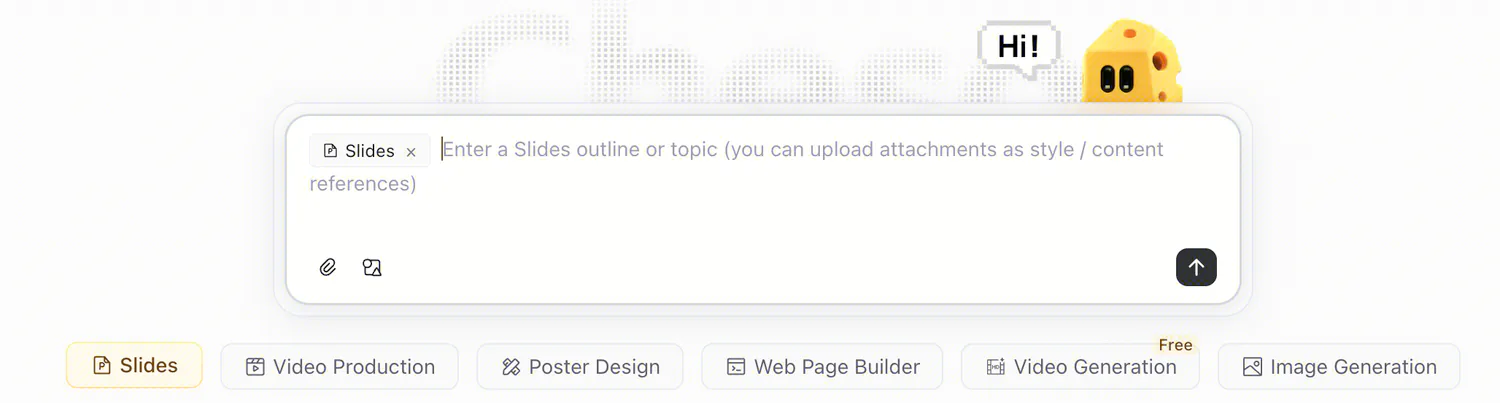
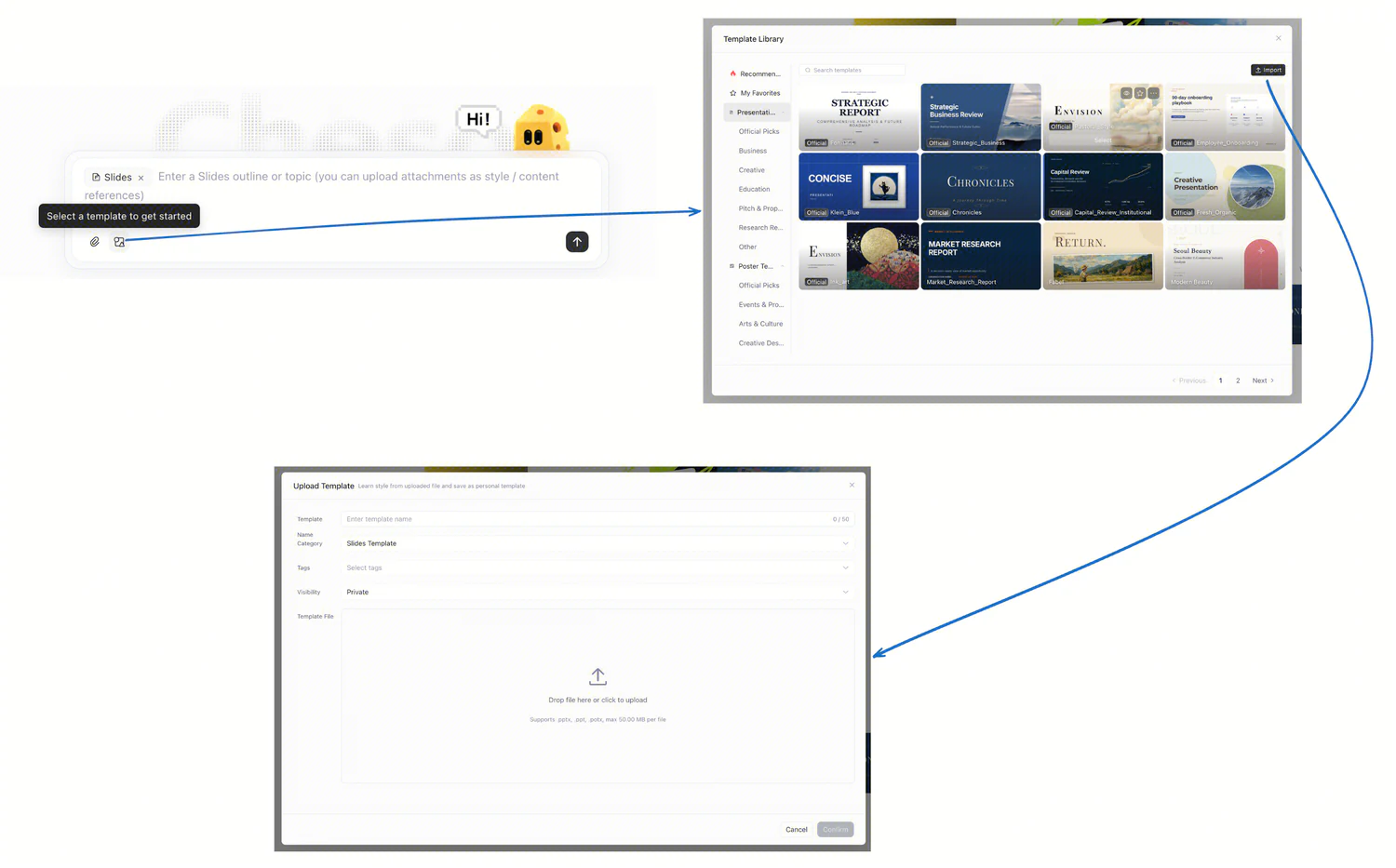
Cheso includes built-in templates, so if you already have a style in mind, you can choose one before you begin. You can also upload your own template for Cheso to work with.
Forgot to pick a template? No problem! Before it starts making the deck, Cheso will show you a template picker so you can choose a style.
For your first task, try this:
Create an English PowerPoint presentation introducing the Super Bowl.
Or head to the Explore Center, pick an existing project, and click Remix to try making your own version.
Posters: Give Your Idea Something People Can Notice
Who said a presentation has to be a PowerPoint?
A poster can be a great fit when you're planning an event, promoting a product, posting on social media, announcing a campus activity, or sharing something with your local community. Sometimes one well-designed visual is the format you need.
Just like with slides, you can choose a template you like or upload your own.
Want to see a few examples? These guides feature posters made with Cheso:
Pretty nice, right?
H5: Turn Your Idea into an Interactive Webpage
You've used a deck to pitch your idea and a poster to attract attention. What comes next?
That's right—a webpage.
It might be a personal page where people can get to know you, a page for an event, or an ordering or booking page. Or it could be something much more playful: a little game to share with your friends. We'll try one in a moment!
Think of an H5 project here as a webpage people can open and interact with, rather than a static slide or image.
🎃 Halloween is just around the corner. What should you dress up as this year? Why not make a little game to help you decide?
No idea where to start? Don't worry. You can brainstorm with Cheso first.
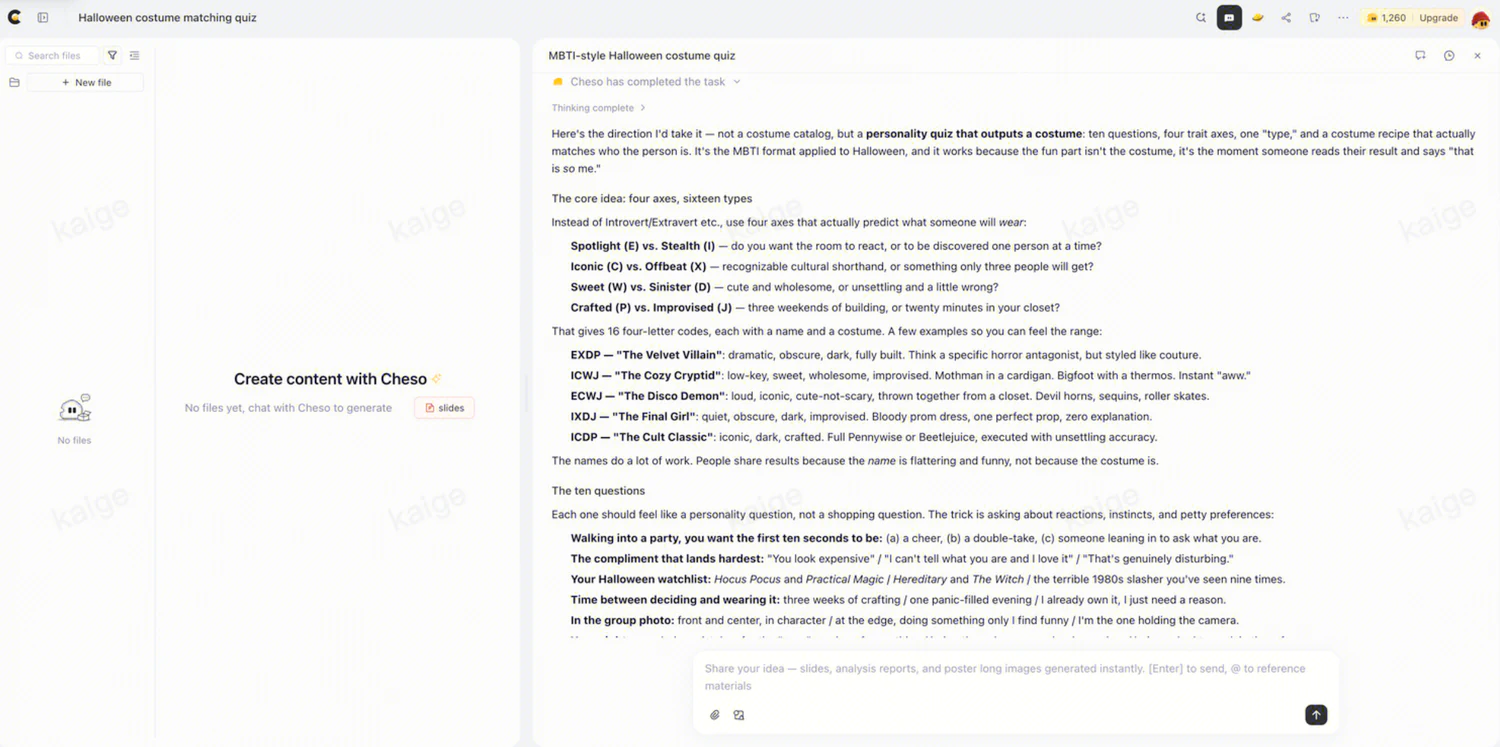
How about a personality quiz that matches you with a costume? For this guide, let's jump straight to the finished version. Answer twelve questions, and the quiz will suggest a costume that matches your personality.
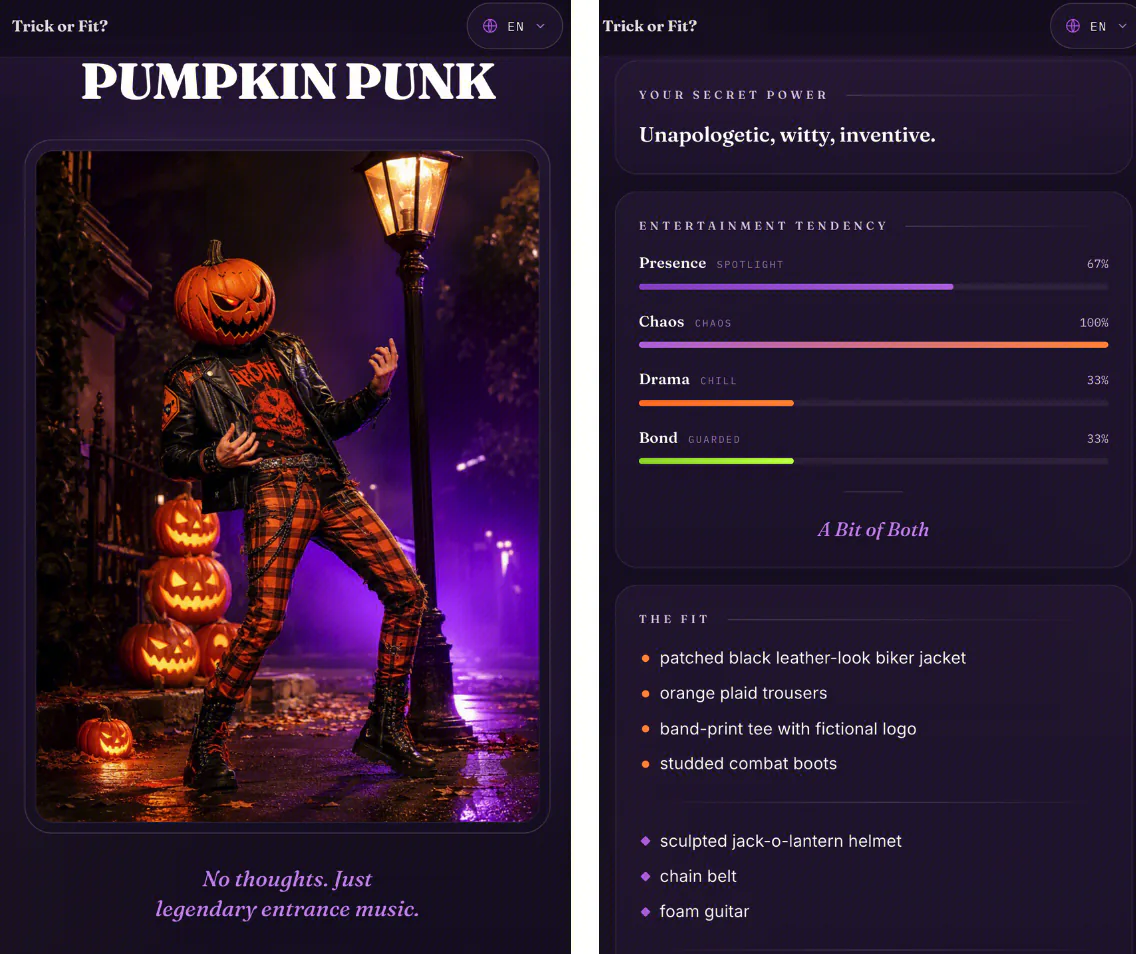
Try the Halloween costume quiz and see what you get.
Image Generation: Make the Artwork, Too
Hey, did you wonder where that PUMPKIN PUNK character came from?
Cheso made it too.
Cheso connects to image-generation models and can use them automatically when a project needs artwork. You can also ask for an image directly by selecting Image Generation.
Let's give it a try:
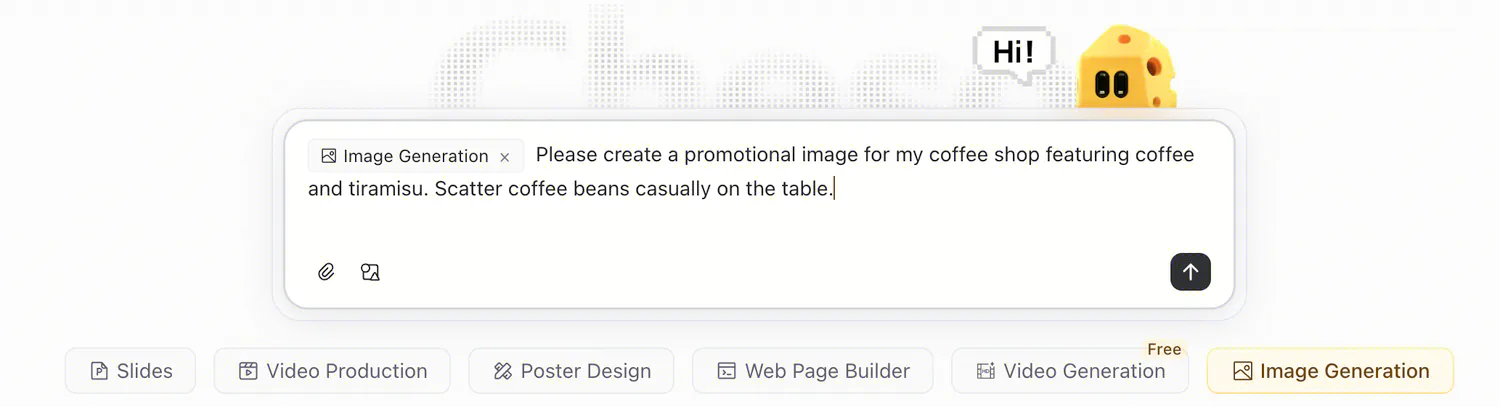
Not bad, right?

The images don't have to be a separate task, either. As with the character in the quiz, artwork can be part of the project you're already building.
Video Generation: Two Ways to Tell the Story
Cheso offers two ways to make videos: MP4 generation using a video-generation model, and Vmotion, its code-based approach to creating videos.
They suit different kinds of projects. Let's look at both.
Use a Video Model for a Headphone Commercial
Suppose we're making a headphone ad for YouTube, Instagram, or TikTok. A fast-paced vertical video is one possible starting point.
For this example, let's imagine that the headphones' main selling point is noise cancellation. We want to show a character moving through different environments, using changes in sound and scenery to tell that story.
Select Video Generation and try this prompt:
Create a 10-second, 9:16 fast-cut headphone commercial. The main character is an adult man with curly hair, wearing a white T-shirt and the same pair of orange over-ear headphones throughout.

[0–1s] He quickly puts on the headphones, bringing them from directly in front of the camera onto his head. An ear cup brushes past the lens, briefly blocking the frame.
[1–2.3s] Hard cut to a front-facing medium shot. He walks along a gray city street and taps the right ear cup with one finger.
[2.3–3.8s] Make a hard match cut on the tapping action. Keep the same person in the same phase of his walking motion while the background instantly changes to a neon-lit stage. His outerwear becomes a shiny silver jacket.
[3.8–5.3s] He taps the ear cup again. Match cut to a sunny seaside setting. He continues stepping in the same direction, now wearing a floral shirt as his outer layer.
[5.3–6.8s] Another tap triggers a hard cut to a vintage record store. He now wears a brown jacket and casually snaps his fingers.
[6.8–8.5s] Make three quick close-up cuts: the ear cup, his fingers, and his smile. Synchronize each cut with a strong musical beat.
[8.5–10s] Return to the city street. He pulls one ear cup away from his ear and looks toward the camera as everyday ambient sounds return.

Switch environments instantly through editing. Keep his walking motion continuous and the headphones visually consistent. Use different instrumental timbres for each environment, followed by a brief pause in the music at the end. No subtitles or watermarks.
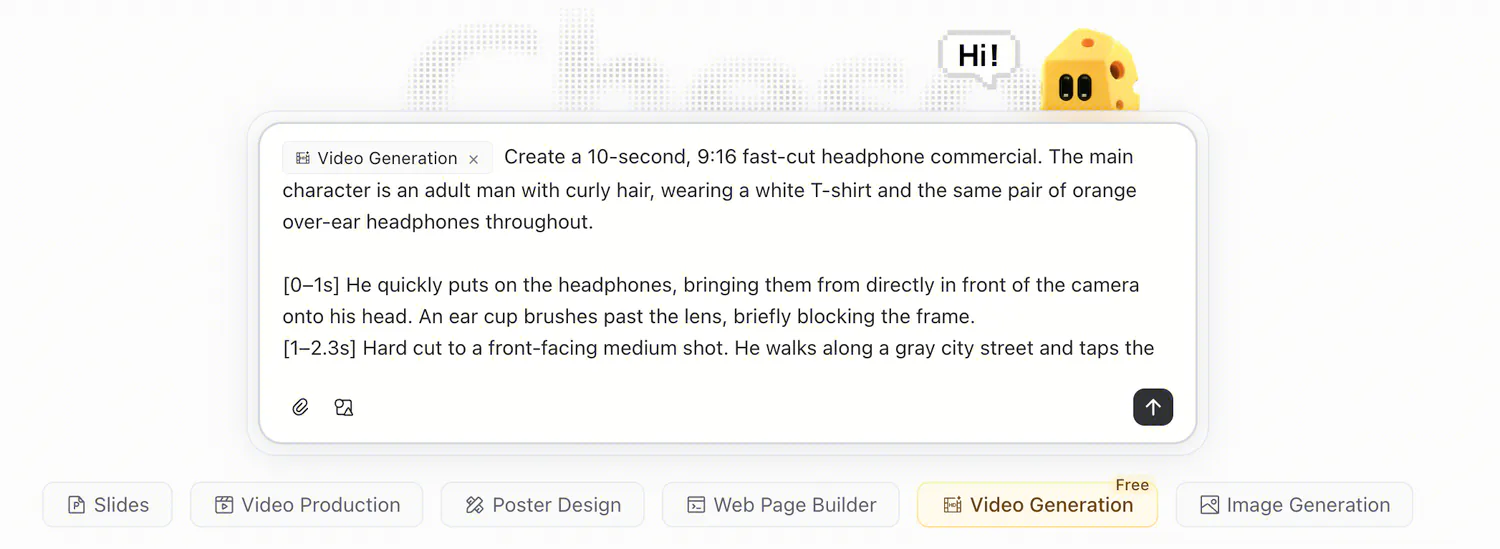
Now let's take a look at the result:
An AI-generated headphone commercial featuring a curly-haired man wearing orange over-ear headphones.
Watch the AI-generated orange-headphones commercial
Remix the full headphone commercial in Cheso.
The prompt describes the character, timing, camera shots, transitions, and sound. It also spells out what should stay consistent: the person, the walking motion, and the orange headphones. Those details make the creative direction clearer; the finished example is there for you to see how it turned out.
Use Vmotion When Words Need to Do Some of the Work
Sometimes a video needs more than a sequence of scenes.
Say you've launched a website. You might want a product introduction that explains what it does, highlights its features, and tells viewers what to pay attention to. In that case, text needs to be part of the video—not just an afterthought.
That's where Vmotion, Cheso's code-generated video approach, comes in. You can create animated text and transitions without relying on a video-generation model to draw the lettering into the footage. That helps avoid the blurry text you can encounter in AI-generated video.
You can simply ask Cheso:
Create a Vibe Video introducing my product.
Then explain what your product does and what you want the video to communicate. Here is a result:
A Cheso Vmotion product introduction demo combining animated text and a smartphone preview.
Watch the Cheso Vmotion product introduction demo
You can also include clips created by a video-generation model in a Vibe Video, or use footage and images you've uploaded yourself. The two approaches can work together in the same project.
For a closer look at how to make one, read From Vibe Coding to Vibe Video: Introducing Cheso's AI Video Generator.
Ready to Make Something?
A deck to explain an idea. A poster to introduce it. A webpage people can interact with. Images to give it a visual identity. A video to bring it into motion.
That's what “beyond presentation” means here: the materials your idea needs don't all have to take the same form.
You don't need to make all five at once. Start with the one that fits what you're working on, and build from there.
Open Cheso and tell it what you'd like to make. Or browse the Explore Center, find a project you like, and click Remix.
What will you make first?