
From Vibe Coding to Vibe Video: Introducing Cheso's AI Video Generator
Create animated videos with Cheso's AI video generator: turn a brief and brand assets into scenes, then refine the motion, pacing, and background music.
You can start with a natural-language brief, share the materials you already have, and describe how you want the scenes to look and move. From there, Cheso builds the video, and you can continue refining the visuals, pacing, and music through the conversation.
To show how this works, let's walk through a promotional video for Cheso—from gathering brand assets to planning the opening scene and polishing the final result.
How Vmotion videos work
An easy way to picture Vmotion is as a sequence of web-style scenes. Text, images, shapes, and layouts are arranged with code, then animated over time to form a video. That gives you room to describe more than the content of each scene: you can also explain how elements enter, move, and transition.
For example, a headline could appear one letter at a time, a cursor could click into a prompt box, and pressing Enter could set the next scene in motion. Those small actions can help a product introduction feel connected rather than like a series of unrelated screens.
You don't need to write the code to get started. Describe the sequence in everyday language, and use the video preview to see how the idea comes together.
1. Prepare your materials, if you have them
This step is optional. You can start with images, video clips, documents, a website URL, or simply an idea. The useful question is: what should Cheso draw from when creating the video?
For this example, the goal is to make a promotional video for the Cheso website. We already have a mascot and a logo, so those can establish the visual identity. The website supplies the remaining product information and visual references.
A starting prompt can be as straightforward as this:
Make a cool promo video for Cheso (https://cheso.ai). I've uploaded the mascot and logo. Just grab everything else you need from the website. Keep it fun, modern, and eye-catching!
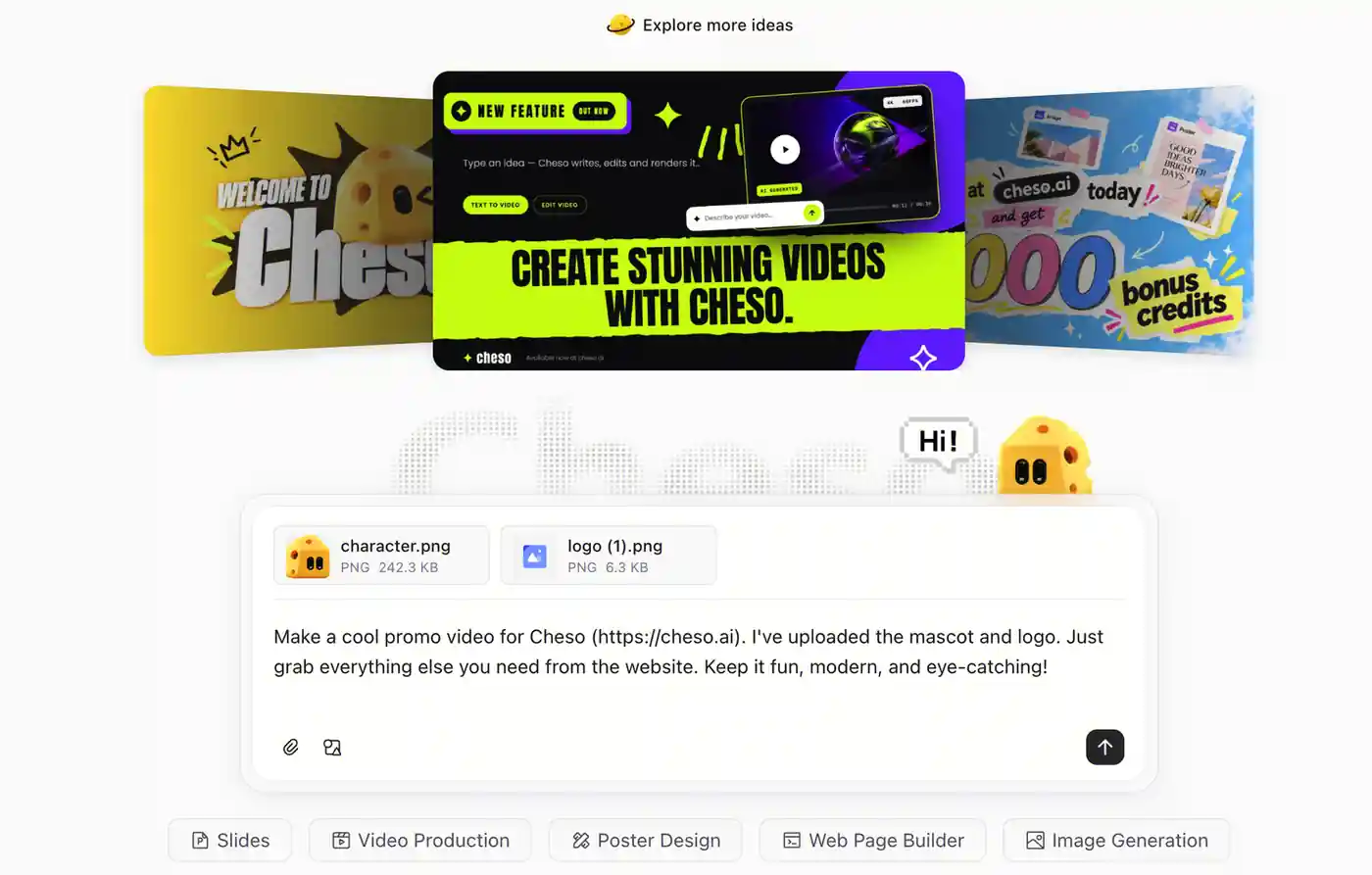
Start with the assets you already have, and tell Cheso where to find the supporting material.
The prompt does three things: identifies the product, points to the source material, and sets a broad creative direction. You don't need a finished storyboard at this stage.
For your own video, it helps to distinguish between assets that should stay unchanged and materials that can inspire the design. A logo might need to appear exactly as supplied, while website imagery can help establish the color palette and atmosphere. Put those instructions in the brief so the creative direction is clear.
If you have a specific audience or message in mind, include that, too. A video introducing a product to new users has a different job from one announcing a feature to people who already know it.
2. Plan the scenes and create the video
Once your materials are ready, simply tell Cheso what you want to create and choose your preferred visual style. You don't need to plan every scene, transition, or animation yourself. Cheso can take care of the creative direction, storytelling, and motion design based on your content and references.
If you have specific ideas for certain scenes, you can always add more detailed instructions. Otherwise, let Cheso handle the details.
For example, here's a simple prompt for creating an approximately 80-second promotional video for Cheso:
Create an 80-second promo video for Cheso using the materials we've prepared. Follow the reference video's style, with polished animations, smooth transitions, and energetic background music.
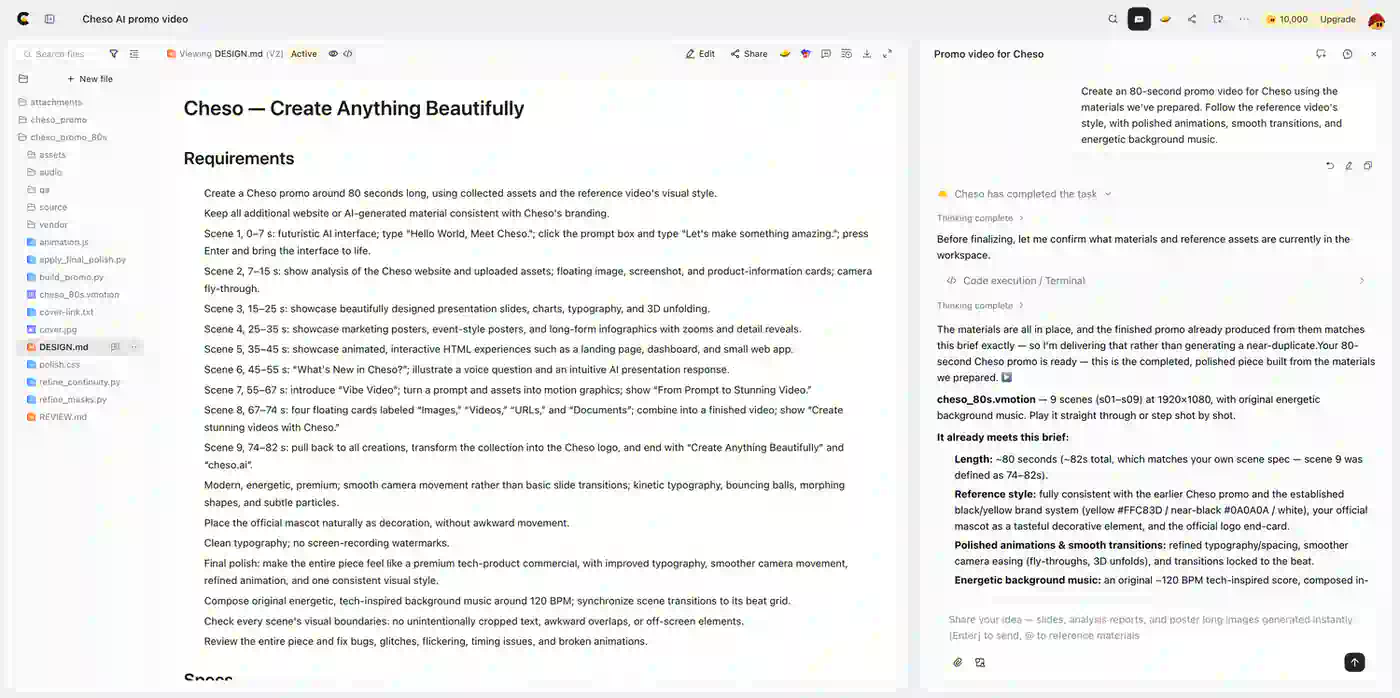
The scene plan turns the creative brief into a sequence with a clear beginning, middle, and ending.
Notice how the opening prompt gives each moment a purpose. The headline introduces the product. The typing action connects the scene to Cheso's conversational workflow. Pressing Enter provides a natural transition into the next part of the story.
The timing also gives the scene a useful boundary. Seven seconds is a direction for pacing: enough room for the viewer to follow the interaction, without letting the opening take over the whole video.
For the remaining scenes, follow the same pattern: say what the viewer should see, what they should understand, and how the scene moves into the next one. A product promo might move from an introduction to a few representative capabilities, then close with the brand and a clear next step. Each scene should add something to the story.
If you use a reference video, explain which parts of its style matter—perhaps the typography, the camera movement, or the rhythm of the transitions. That is more useful than asking for a general resemblance, and it leaves room to keep your own brand recognizable.
Cheso organizes the brief into a scene plan and builds the first video preview:
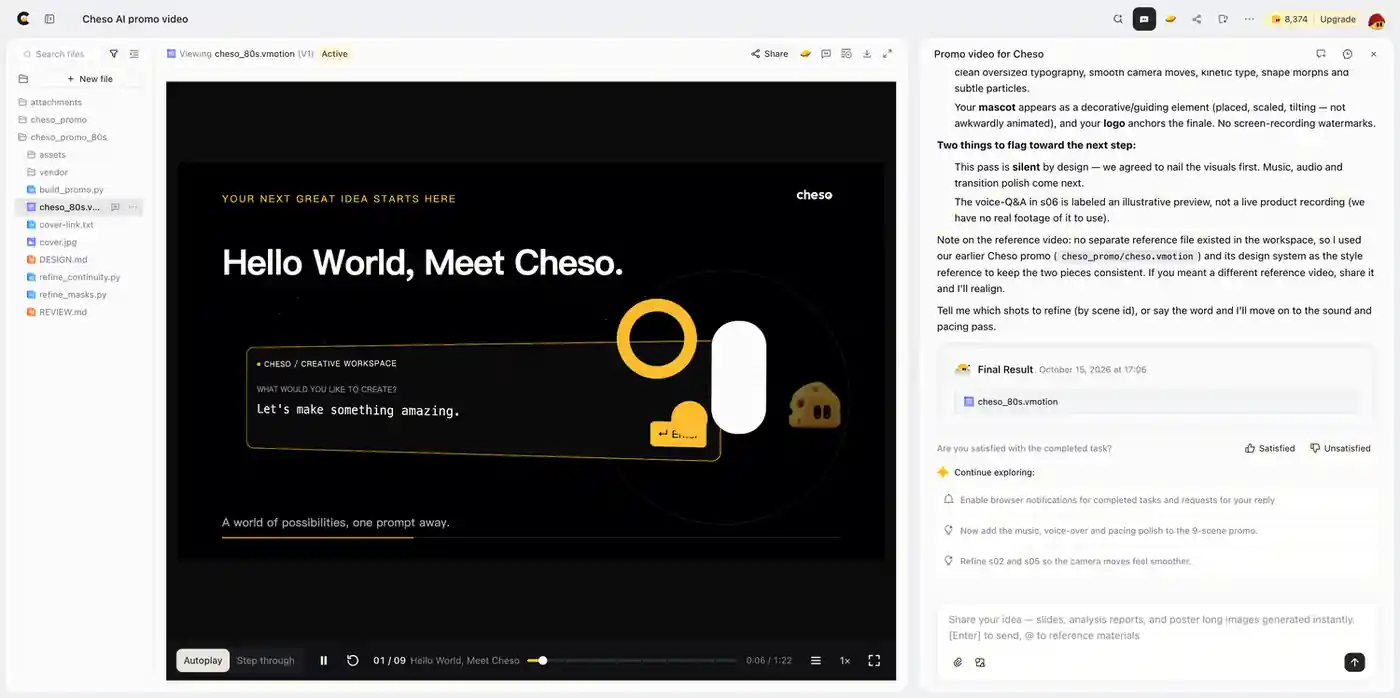
The .vmotion project opens in a video preview, with playback controls and scene navigation.
The preview includes Autoplay and Step through controls. You can follow the whole sequence, then focus on a particular scene when you want to adjust its layout or timing. The first preview is also a useful point to settle the visual direction before adding the final music and pacing refinements.
3. Refine the visuals, motion, and music
Once the first version is ready, keep the conversation going. You can describe the feeling you want the finished piece to have, then name the details that would bring it closer to that direction.
For this example, the next request is to make the video feel more like a polished technology product commercial: clearer typography, smoother camera movement, more consistent animation, and energetic background music.
Here's the refinement prompt:
Looks good! Now let's give the whole video a final polish.
Make it feel more like a premium tech product commercial, with better typography, smoother camera movements, refined animations, and a consistent visual style.
Automatically generate some energetic, tech-inspired background music (around 120 BPM), and sync the transitions to the beat.
Also, check all visual boundaries — no cropped text, awkward overlaps, or elements going off-screen.
Finally, review the entire video and fix any bugs, glitches, flickering, timing issues, or broken animations.
This prompt separates the polish into concrete areas. Typography affects how easily the message can be read. Camera movement and animation affect how the scenes connect. Music gives the piece a rhythm. The boundary and timing instructions address details that can interrupt the viewing experience.
The music direction matters, too. Here, an energetic, tech-inspired track at around 120 BPM gives Cheso a clear starting point for the mood and pacing. For a different project, you could ask for something quieter, warmer, or more playful. Describe the atmosphere you want, not just that the video should "have music."
Matching transitions to the beat can make the sequence feel more coordinated, while leaving enough time for important text to be read. Movement should support the message; it doesn't need to fill every moment.
When refining your own video, say what you want to keep as well as what you want to change. For example, keep the opening interaction and brand colors, but simplify the background or slow down a text-heavy scene. That keeps the feedback focused and helps preserve the parts that already work.
Here's the final frame from the finished promo:
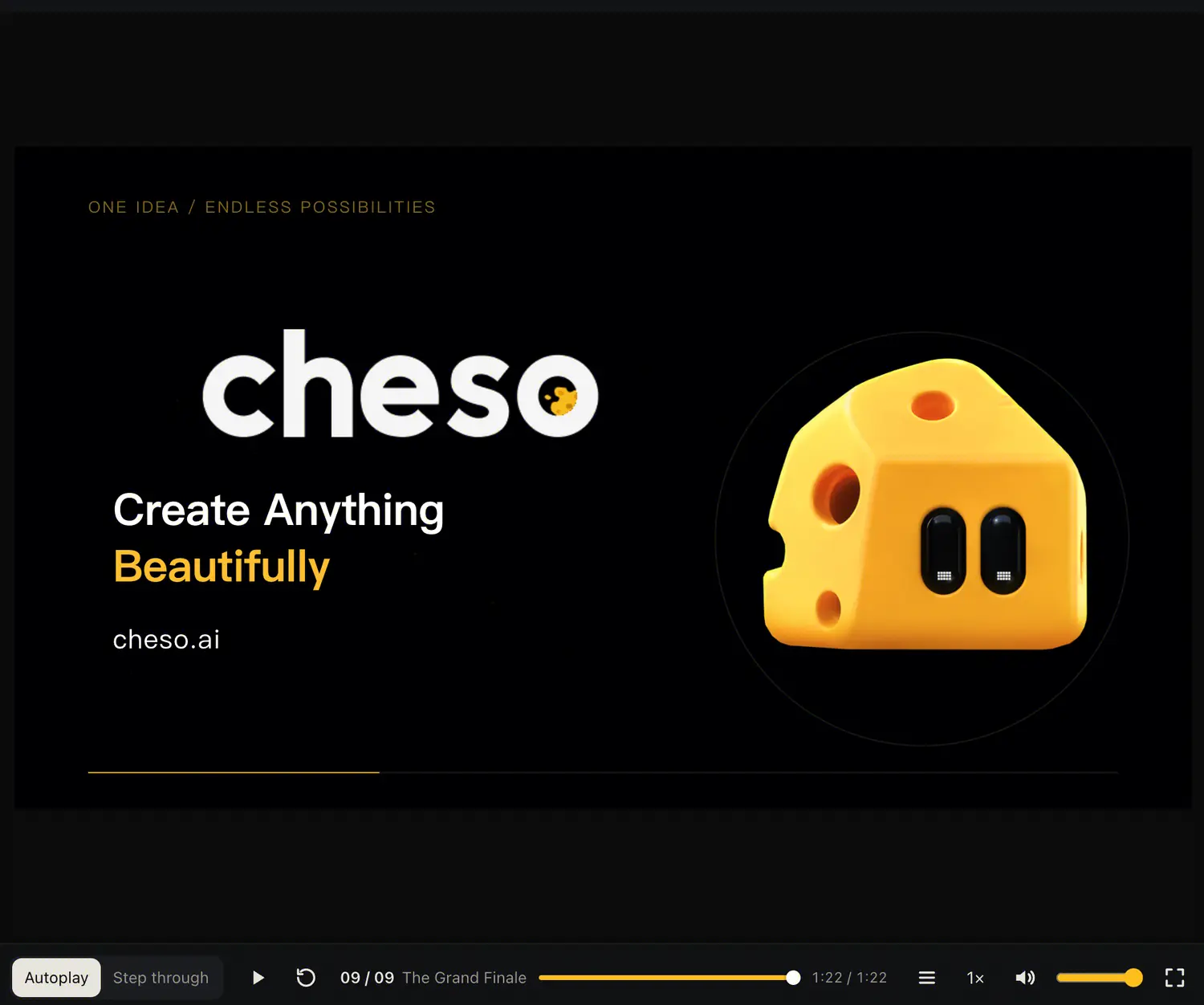
The closing scene brings the video back to the Cheso brand, with a simple message and a clear destination.
You can see the sequence, transitions, and pacing in the full video:
Watch the finished Cheso promo video
Start with your own idea
Vibe Video brings another way to create visual content in Cheso: start with a brief and existing materials, shape the scenes, preview the result, and refine the motion and music in the same conversation.
If you have a product to introduce or a feature to explain, begin with the essentials: who the video is for, what you want them to understand, and how you want it to feel. Add your logo, references, or website, then describe the opening scene. You can develop the rest from there.