
Track Your Designs and Present with Confidence: Cheso User Guide 02
Learn how to track visits to shared Cheso designs, generate a speaker script, and use live presentation assistance to handle audience questions.
Track Your Designs and Present with Confidence: Cheso User Guide 02
Hi guys! In the previous guide, we explored Cheso's core creation tools: slide decks, posters, HTML pages, videos, and images. This time, let's look at what comes next: tracking visits to your shared designs, preparing a speaker script, and getting help with audience questions during a live presentation.
Say you've made a promotional poster for your shop and posted it online. Of course you want people to see it! But how many are actually opening it? How often? Is interest picking up or slowing down? That's where a little data comes in handy.
Or maybe you're not at that stage yet. You're still pitching your idea to investors, hoping to get some startup funding. You want the pitch to go smoothly, and you want to stay calm when the questions start coming. You've prepared your script, of course—but nerves can still make you stumble or lose your train of thought.
What do you do then? Don't panic. Cheso can give you a hand.
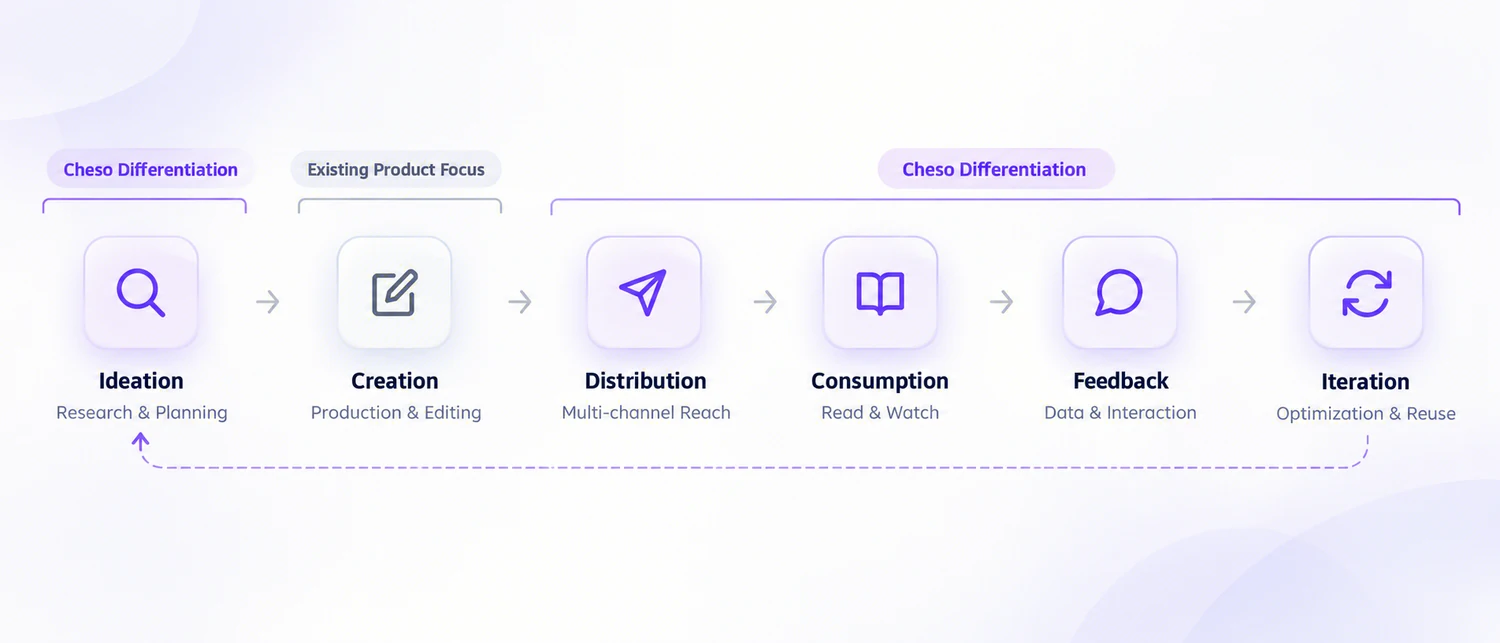
The idea behind Cheso is to connect the whole presentation workflow, from the first idea to sharing your work, getting feedback, and improving it:
So let's look at two handy features: analytics and presentation assistance.
Analytics: What Happens After You Share?
Let's use the promotional poster I made for my friend's café the other day. You can see how I made it in How to Create a Promotional Poster with AI.
Imagine she posts the promotion on the café's Instagram and shares the Cheso link so people can open the design. Naturally, she'll want to know how many people actually click through. Is the promotion getting attention? Should she try sharing it differently—or perhaps make the discount a little more tempting?
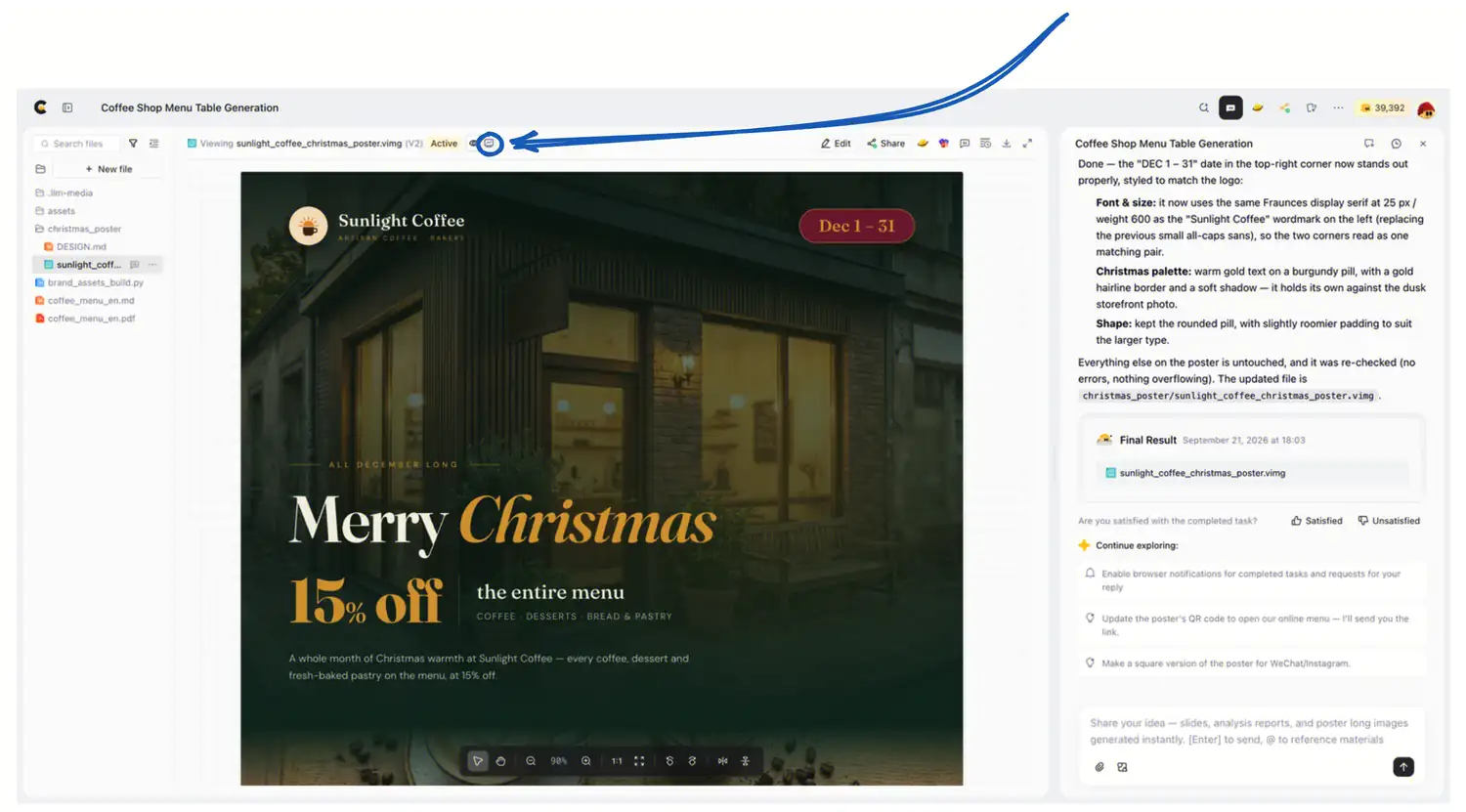
That's why we built the analytics feature. Open the design and click the analytics icon highlighted in the top toolbar:
That takes you to the Data Analytics dashboard:
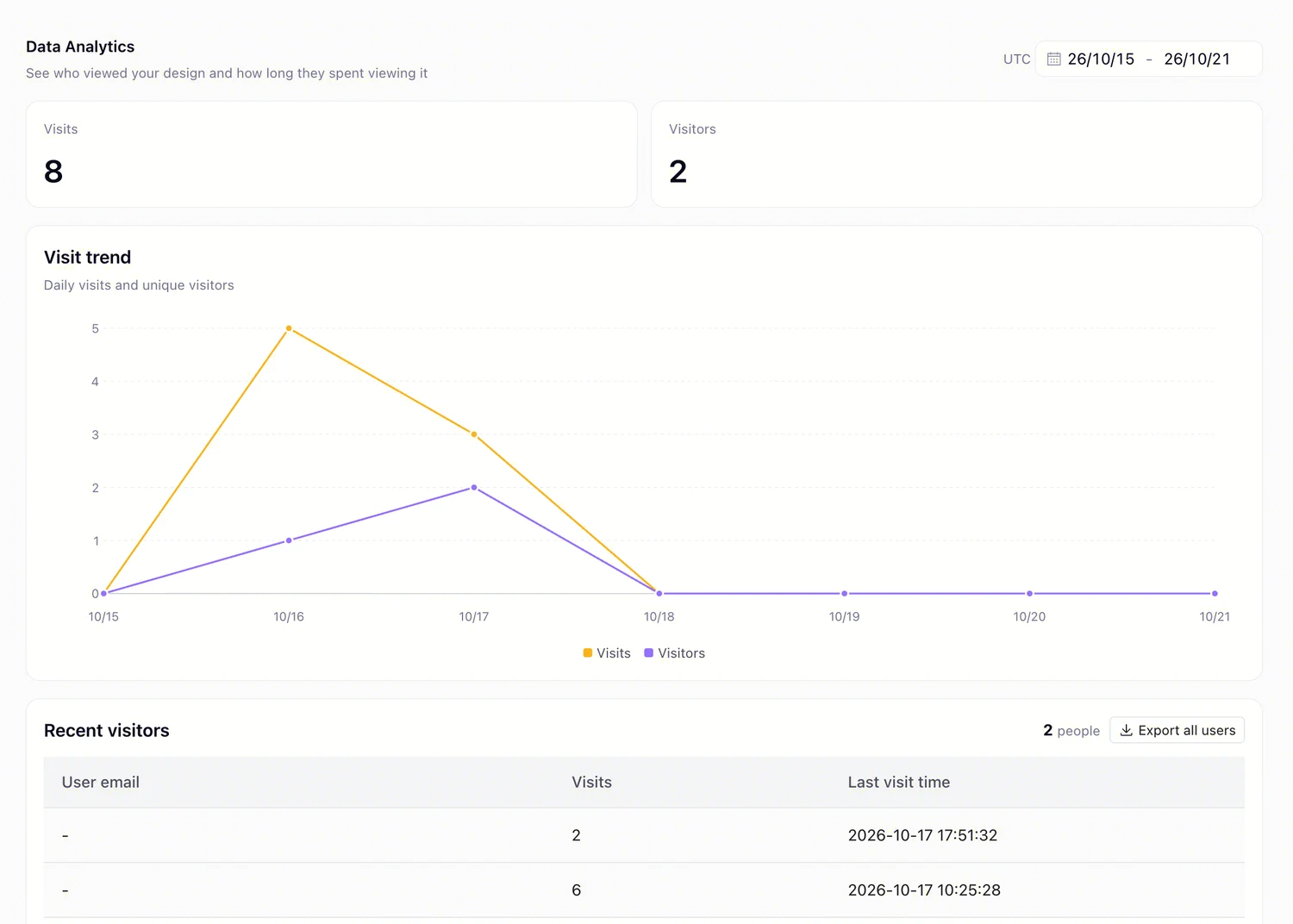
Oops. Eight visits, two visitors. Not exactly a crowd!
The two numbers tell slightly different stories: visits can include repeat openings, while visitors shows the unique audience counted by the dashboard. The trend chart lets you see how visits change over time. Here, we're looking at visits to the shared Cheso design, not the café's total Instagram reach.
Eight visits alone won't tell my friend whether the offer needs a rethink. But it's a starting point. She can try an adjustment, share the promotion again, and see what happens next.
That's the point of the dashboard: once you've put your work out there, you have something to learn from—not just a poster and your fingers crossed.
Presentation Assistance: A Little Help Before—and During—the Talk
Hey, let's rewind a little. Before there was a café to promote, there was a café to pitch.
When my friend was getting her café off the ground, she went to her local SBDC (Small Business Development Center) for help. In her case, she got help with a space for the business and free startup guidance. Her presentation to the business adviser made a real difference.
And a good speaker script is a big part of that preparation!
Before we get into the steps, here's a quick look at Cheso's presentation assistance in action:
Pretty cool, right? Now let's see where to find these features and how to use them.
Generate a Speaker Script
Let's start with the speaker script. We'll use a Super Bowl deck for this example. Open the notes/script panel using the icon in the top toolbar, then click Generate script beneath the slide, following the arrows below:
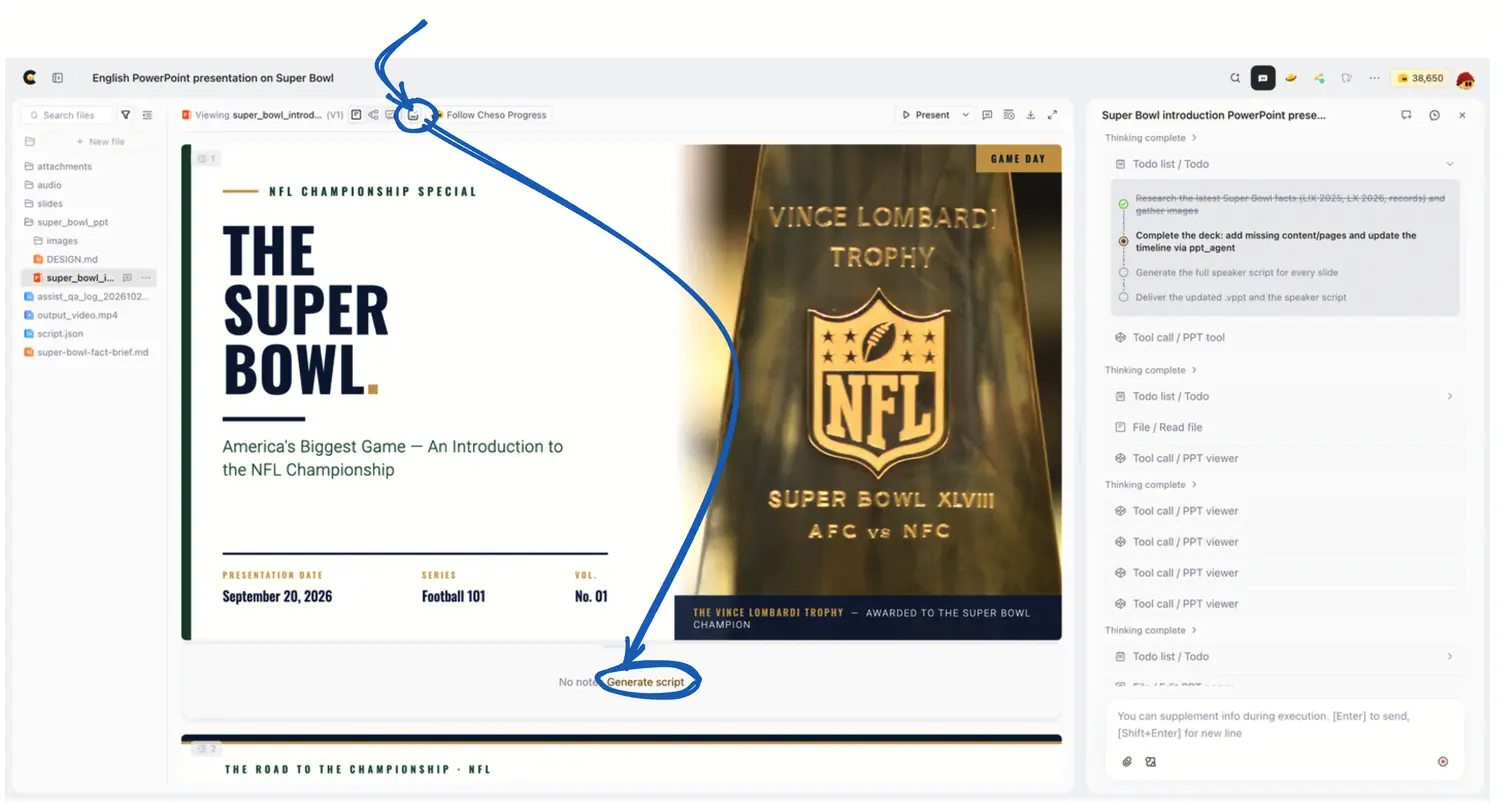
Cheso's built-in Skills read the deck and can use tools such as web search to help put together a detailed script that follows your slides. And hey, here's the finished script:
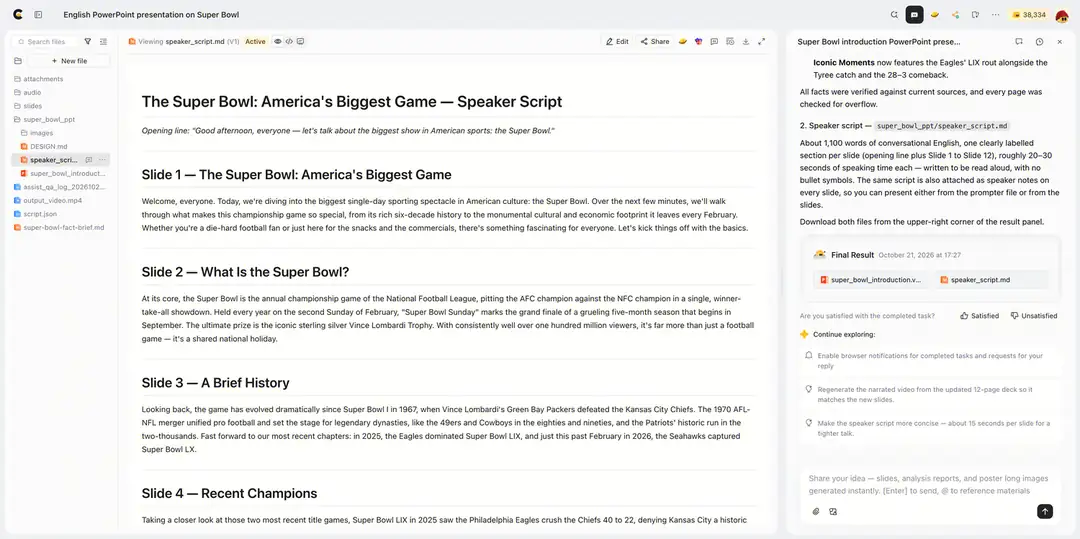
Read it through, check the key facts, and tweak the wording so it sounds like you. After all, you're the one giving the talk.
Start Live Presentation Assistance
But even a good script can't predict every question. What if someone in the audience asks something you weren't planning to cover?
That's the situation we had in mind when we built presentation assistance.
With your deck open in Cheso, click the dropdown arrow beside Present and select Presenter View:
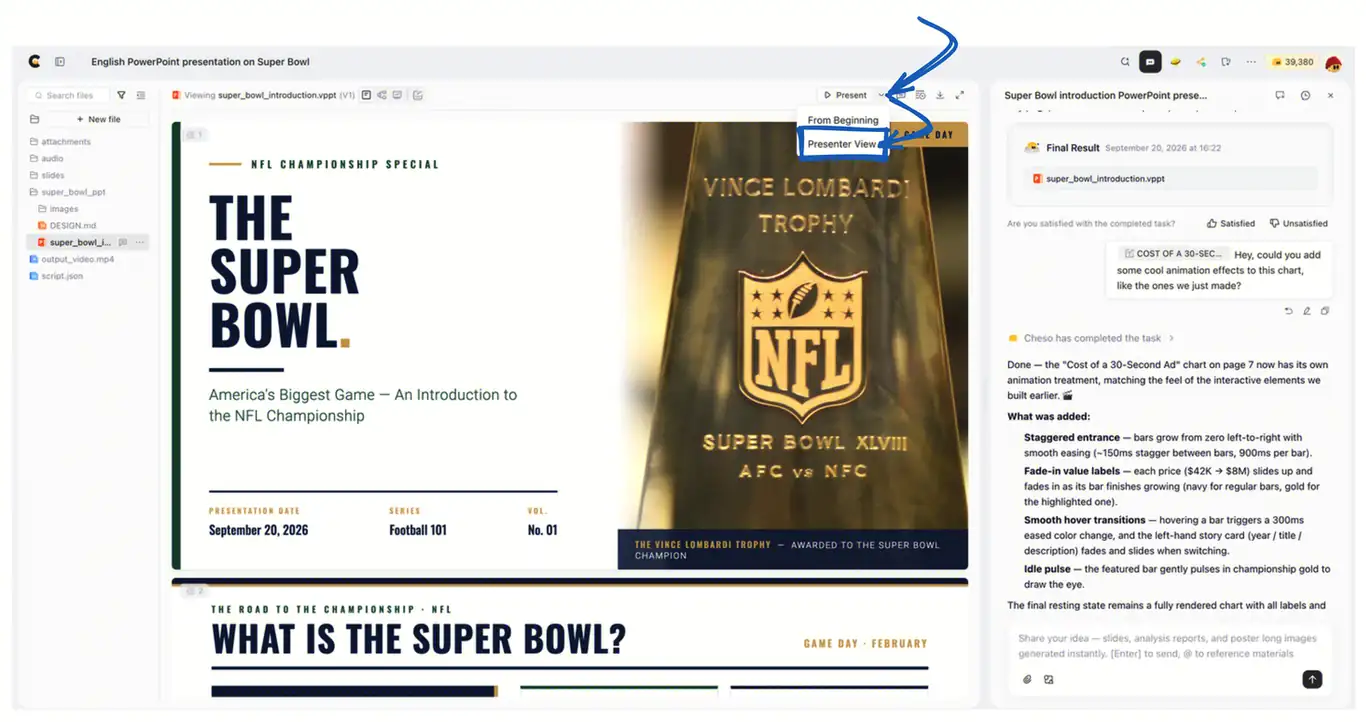
You'll see your notes on the right. Below them, in the bottom-right Presentation assist panel, click Start live assist:
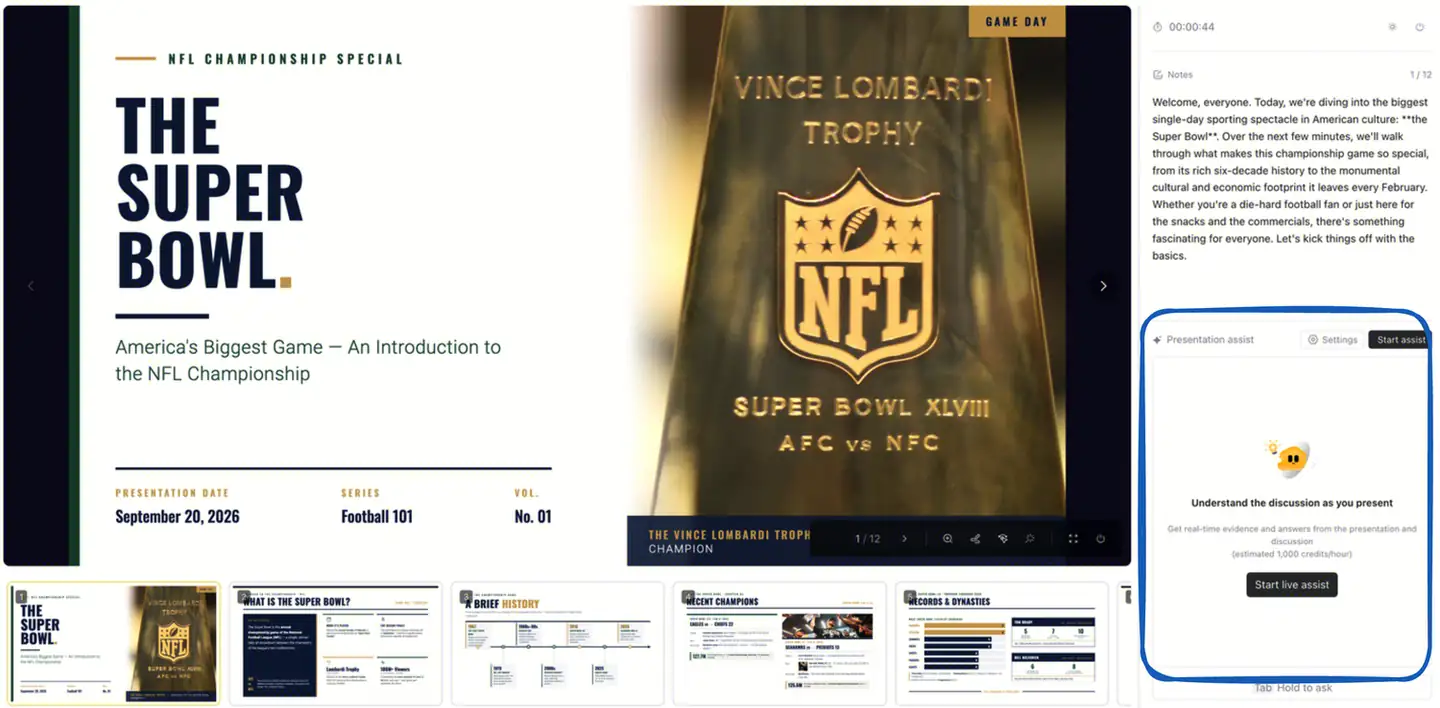
Let's give it a try. First, a simple question:
What is the Super Bowl?
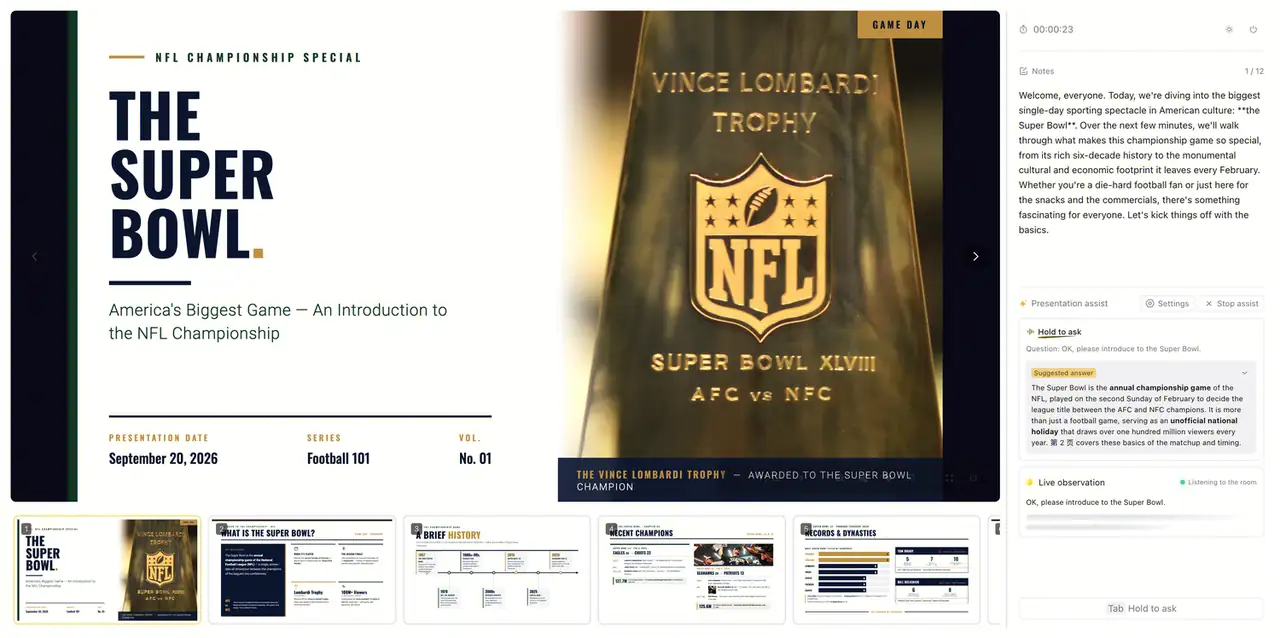
Hey, there's a suggested answer already. Now let's ask something more specific:
How many people watched the Super Bowl last year?
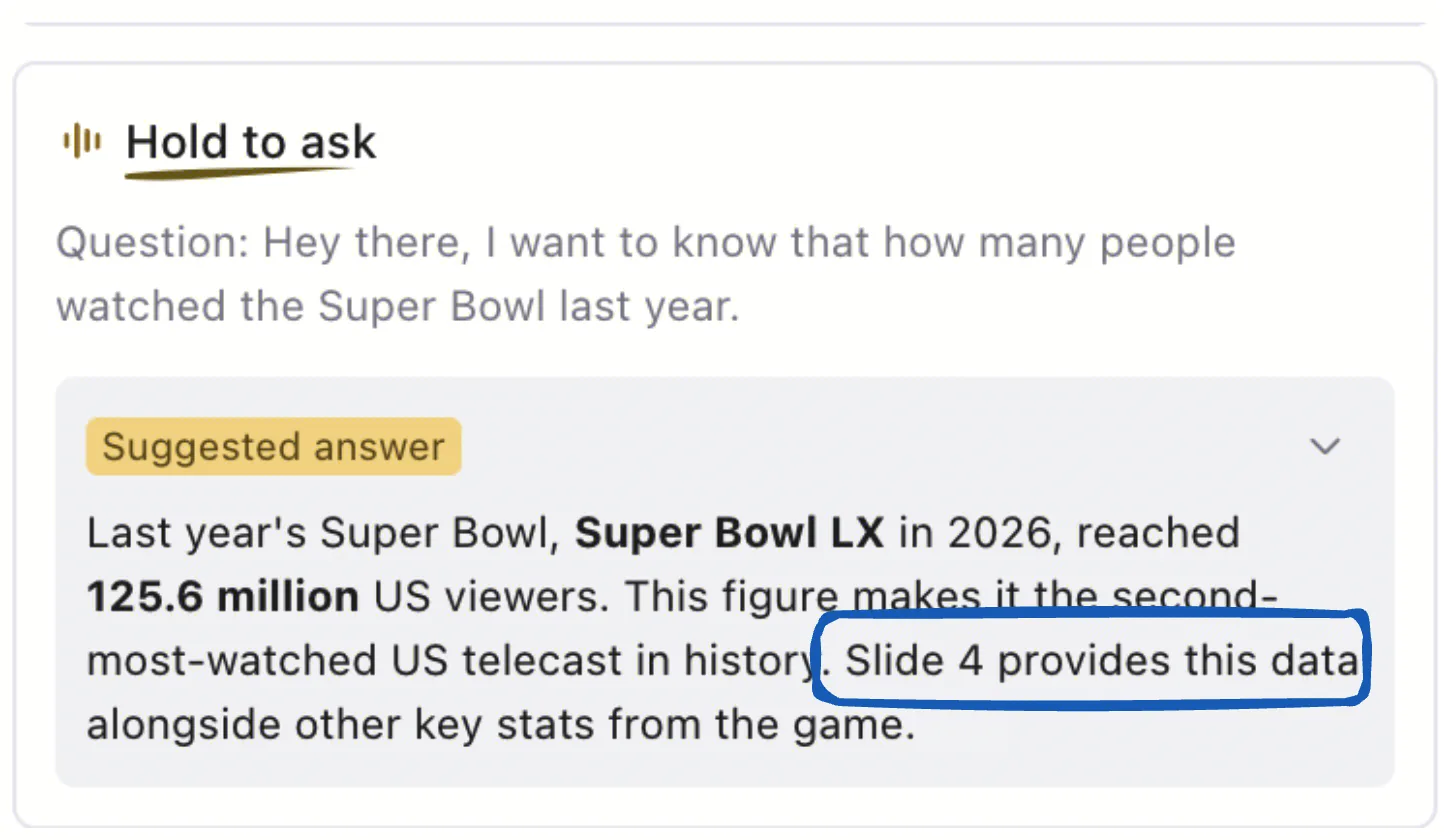
See that? The assistant doesn't just suggest an answer—it also points me to the relevant slide. In this example, that's Slide 4, so I can quickly find it and show the audience what I'm referring to.
The screenshots illustrate the workflow, not verified sports statistics. You still want to check the suggestion and the slide before using them in your answer. Pay particular attention to dates and figures: a question about "last year" needs the correct year and a reliable source. But when a question catches you off guard, having that starting point can help you find your footing.
That's the Whole Idea
Making the slides is one part of a presentation. Knowing how your shared work is doing, getting ready to speak, and handling those unexpected questions are part of it too. That's what we mean by connecting the whole presentation workflow.
Got something to share—or a presentation coming up? Open Cheso and give these features a try.