
Perhaps One of the Best AI Presentation Makers? 6 Reasons to Try Cheso
Explore six reasons to try Cheso for AI presentations: direct text and image editing, data visualization, flexible exports, narrated videos, and credit options.
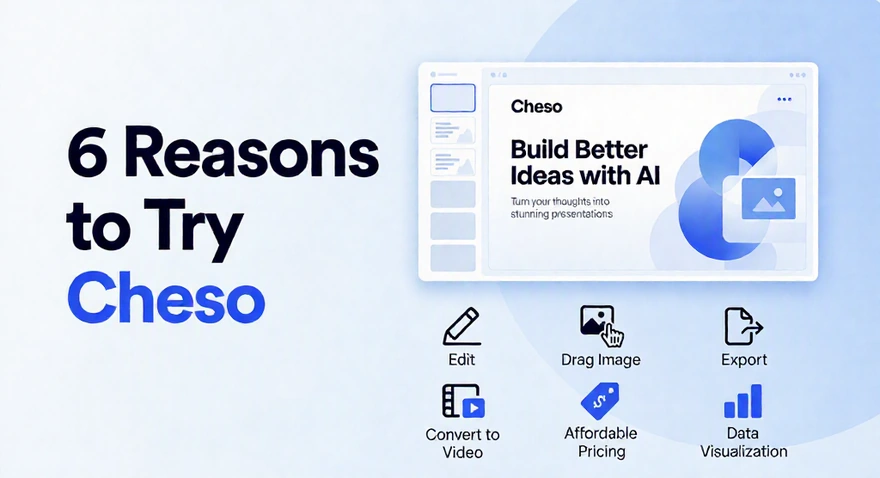
Perhaps One of the Best AI Presentation Makers? 6 Reasons to Try Cheso
Cheso brings AI generation and hands-on editing into one presentation workflow. Here are six reasons to try it: direct control over fonts and images, clearer data visuals, flexible exports, narrated videos, and credit options that fit different workloads.
Hey. Me again.
Apparently, getting older comes with an irresistible urge to talk about the good old days. The glory. The ambition. The summers that were somehow better than all subsequent summers.
I have a feeling the AI generation will be a little more selective with its nostalgia.
Send me back to 2019—before generative AI became an everyday coworker—and watch me stare helplessly at a blank slide. Could I still get things done? Probably. Would I be dramatically unhappy about how much work was involved? Absolutely.
AI has made so many things easier. Making presentations is a particularly satisfying example. Tools such as Gamma, Canva, Lovart, Beautiful.ai, and AiPPT have helped move us beyond the blank-slide stare-down. I genuinely like a lot of what they do.
But I'm a product manager. Noticing unnecessary friction is an occupational hazard. I can be enjoying a product and mentally redesigning three of its buttons at the same time. Very relaxing. Highly recommended.
And once an AI-generated deck exists, the little frustrations start to matter. A font that isn't quite right. An image that needs to move a little to the left. A chart that could explain the story better. An export that needs to work somewhere other than the app that created it.
These aren't a claim that every competing product has every problem. They're the kinds of workflow snags that kept showing up on our list of things worth fixing.
So our talented—and, entirely coincidentally, extremely good-looking—team built Cheso around a simple idea: AI should do more of the work without taking away your control over the result.
Think of us as a considerably less ominous SCP-style lab. Secure the idea. Contain the busywork. Protect everyone's patience.
Here's what that looks like in practice.
1. A different font should not require diplomatic negotiations
AI picked a font. You have opinions.
Both of these things can be true.
Maybe the title needs more personality. Maybe the body text needs to calm down. Maybe “technically readable” simply isn't the vibe. You shouldn't have to explain your entire design philosophy just to try another typeface.
In Cheso, open your presentation in Edit mode, select the text you want to change, and choose a font from the font picker.
Same slide. Different typeface. No peace treaty required.
You can also adjust the font size, weight, spacing, and alignment. It's the kind of hands-on control you'd expect when you're actually designing a presentation, not just watching one appear.
A useful approach: give the headline its personality, then let the body text do its job. The audience should notice the message before they notice that you've discovered twelve new fonts.
When you're happy, click Save. Yes, Save is going to be a recurring character in this article.
For a longer walkthrough, see our guide to starting with a template and editing your presentation.
2. Sometimes the correct prompt is simply dragging the image
The AI's layout is good. The image placement is almost good.
Almost, as anyone who has ever designed a slide knows, can be a surprisingly irritating distance from good.
You want the photo a little larger. Or behind the text. Or slightly to the right. Turning that tiny adjustment into several rounds of “no, a bit less—actually, back the other way” is not my idea of a productive afternoon.
My patience did not sign up for this.
Cheso lets you make those adjustments directly. Enter Edit mode, select the image, then change its position, size, or layer order.
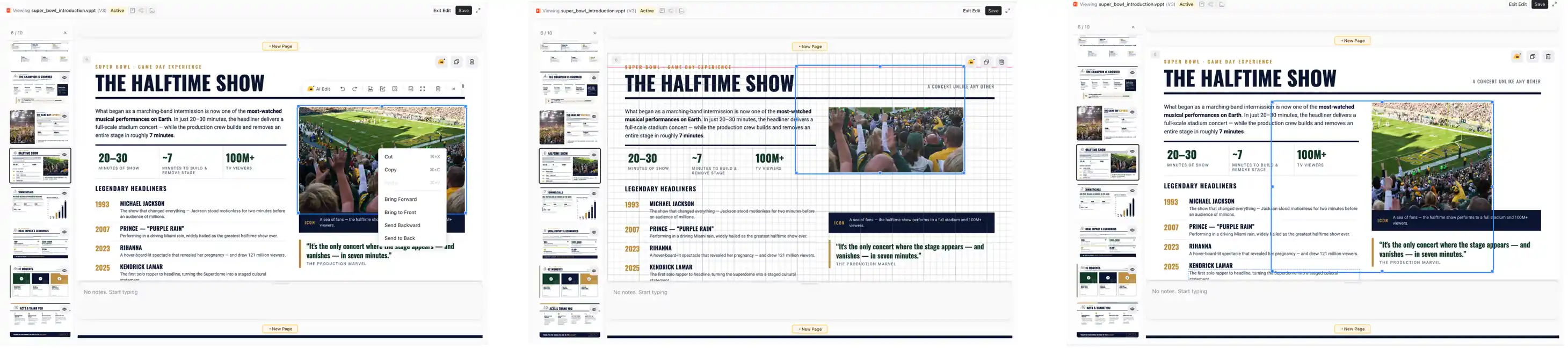
Move it. Resize it. Put it in the right layer. You are allowed to have hands.
Layer order is particularly useful when elements overlap: bring the image forward when it needs to sit on top, or send it backward when it belongs behind another element. Moving an image changes where it sits; changing its layer changes what sits in front of it. Small distinction, large reduction in confusion.
Use AI when you want a new direction. Use direct editing when you already know exactly where that photo belongs. Both are part of the same creative process.
Then click Save. Our recurring character returns.
3. Give the data something better to wear than a wall of numbers
Here's a small presentation trick: choose a visual that makes the point easier to understand, and the slide immediately becomes more interesting.
The operative phrase is “makes the point easier to understand.” A chart isn't automatically helpful just because it has colors and an entrance animation. Although I do appreciate a good entrance.
Cheso can turn information into visual formats such as pie and bar charts, swimlane diagrams, and Gantt charts. It can also choose a suitable presentation for the material, which is convenient for those of us who like every option and are therefore excellent at choosing none of them.
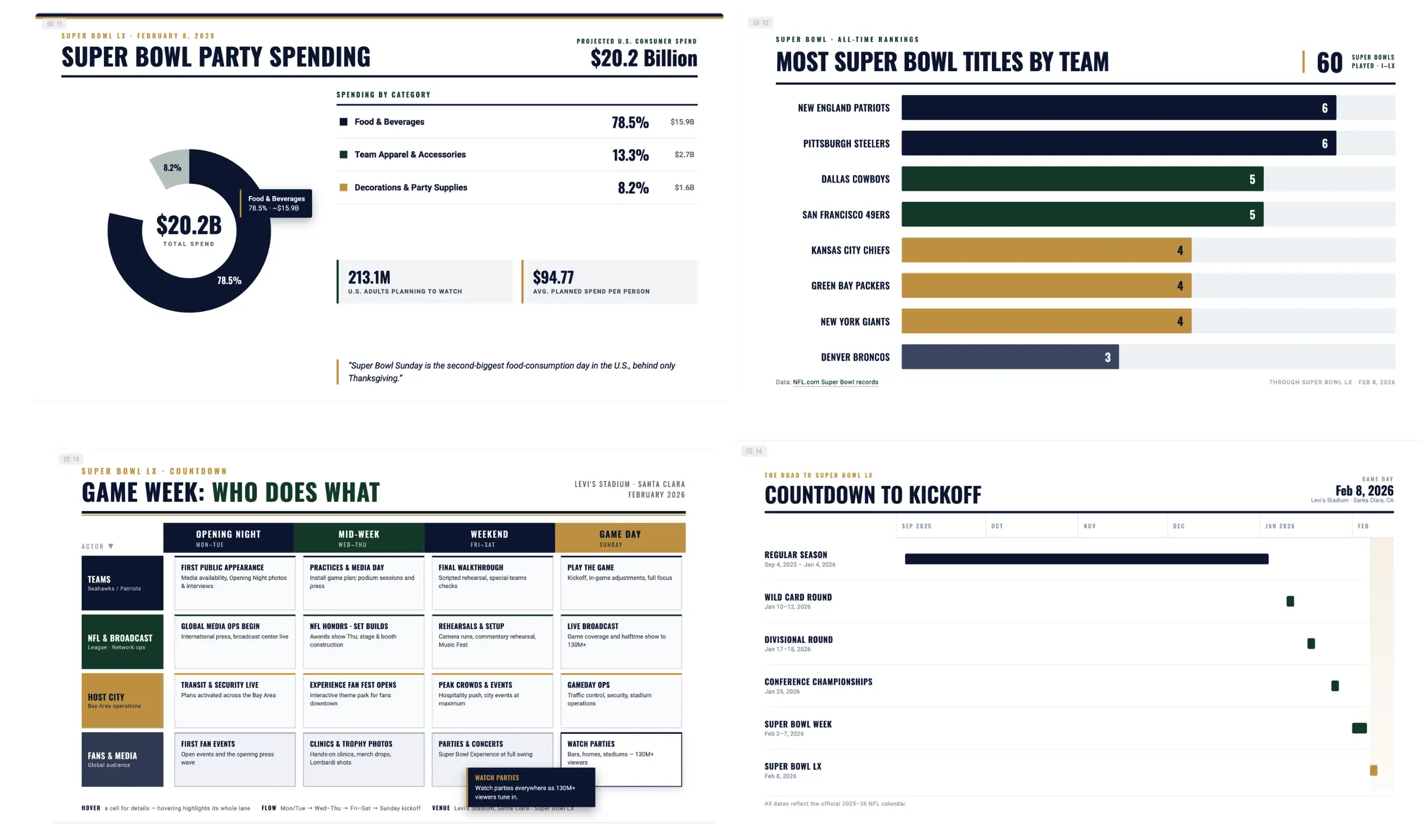
One topic, four visual jobs: composition, comparison, responsibility, and timing.
The simplest way to guide the result is to describe what you want the audience to notice:
- Part of a whole: use a pie or doughnut chart to show how a total is divided, especially when there are only a few categories.
- A comparison: use a bar chart when the important question is “which is larger, smaller, or ahead?”
- Who does what: use a swimlane diagram to show responsibilities and handoffs across teams or stages.
- What happens when: use a Gantt chart to make duration, overlap, and scheduling easier to see.
For example:
Show how the budget is divided by category, and make the largest category easy to spot. Keep the labels readable and use the figures from the source material.
That's a clearer job than “add a cool chart,” though I respect the enthusiasm behind that request.
Interactive details can make a browser-based presentation more engaging, too. Just remember that the visual has to suit the final format: a PDF can't respond to a hover, and a video can't let the viewer click around. The chart should still communicate its main point when those interactions aren't available.
4. The presentation should be allowed to leave the building
A deck isn't finished just because it looks good inside the tool that made it.
You might need to hand it to a colleague who works in PowerPoint, send a PDF, present without an internet connection, or bring it into a Google-based workflow. “Look at my beautiful presentation, but only under these very specific conditions” is not much of a handoff.
Cheso gives you several ways to take the work with you.
Keep editing in PowerPoint
Download an editable PPTX and continue working in PowerPoint. If that's where your team makes its final changes, the presentation can meet them there. No loyalty oath required. Cheso's editor will survive the rejection.
PPTX export is designed to carry the layout and styling over closely, and supported animation effects can make the trip as well. There is still a format boundary: PowerPoint and a browser don't render everything in the same way, so some fonts, spacing, or effects can differ. This is editable PowerPoint delivery, not a promise that every browser effect becomes a native PowerPoint animation.
Keep the browser presentation experience
If the animations and browser-based presentation effects are the part you want to preserve, choose Export Cheso offline presentation. Open the exported HTML file in a browser to present it offline.
The idea is simple: take the Cheso presentation experience with you instead of translating it into a different presentation format.
Seeing is believing. Taking it with you is even better.
Choose the handoff that fits the job
| What you need | What to use |
|---|---|
| A deck to keep editing in PowerPoint | Editable PPTX |
| A static document that's easy to read and distribute | |
| An offline, browser-based presentation with its animations | Cheso offline presentation (HTML) |
| A presentation in your Google workflow | Google Slides or Google Drive export |
| Delivery through the email connector | Notification email |
| A poster as a single image | PNG |
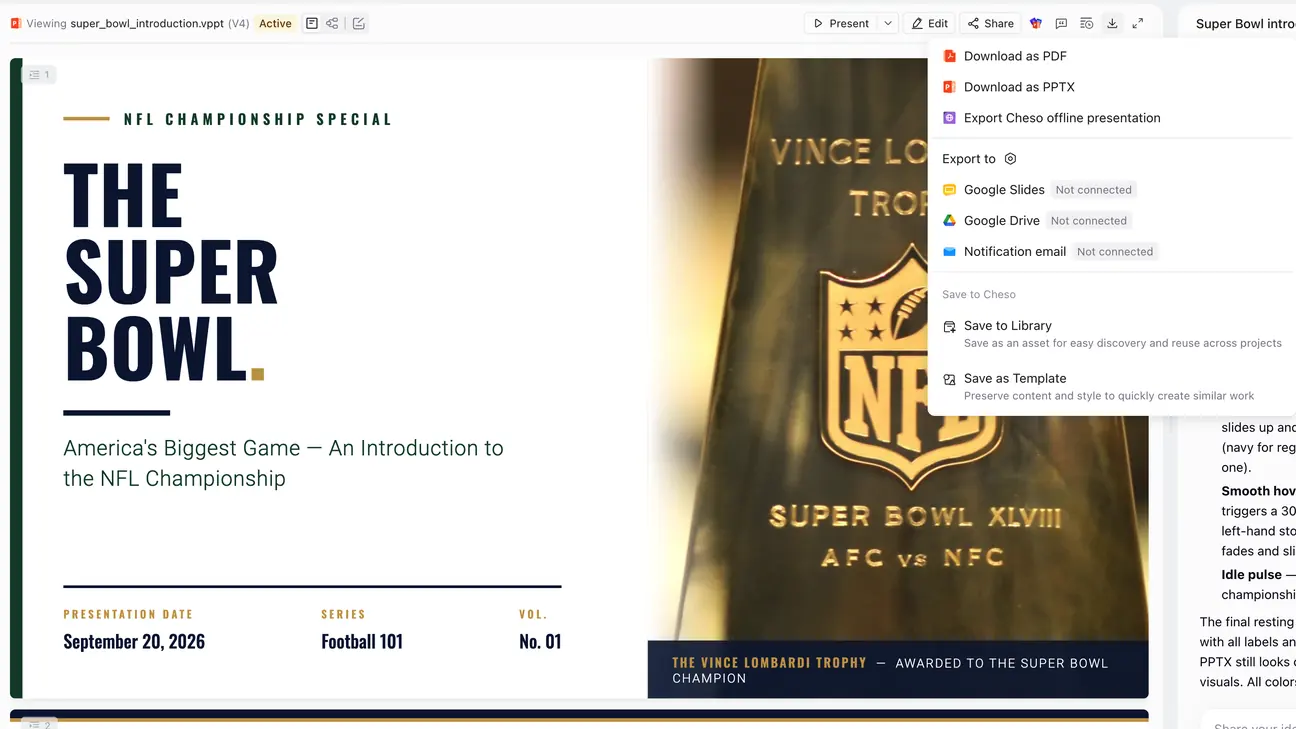
The export menu: several sensible exits, all clearly marked.
Google Slides, Google Drive, and email use connectors. Connect the destination you want to use, then select it when exporting. The screenshot shows those options before connection—“Not connected” is a setup step, not a mysterious new file format.
And yes, PDF export is built in. You can retire the browser search for “convert PPT to PDF online free actually free.” You've done enough work today.
For posters, PNG provides a single image you can share or prepare for printing. Match the output dimensions to the intended use; a phone-sized graphic and a large printed poster have rather different ambitions.
5. Give the deck a voice. You have already explained it once.
Some presentations deserve an encore. Their presenters do not necessarily deserve another meeting.
After creating a deck, try this:
Please turn your PPT into a narrated video.
This is where the magic begins. Conveniently, it begins with one sentence.
Cheso analyzes the content of each slide and uses text-to-speech to generate narration, then assembles the slides and audio into a video. Narration supports languages including English, Chinese, Japanese, and Korean.
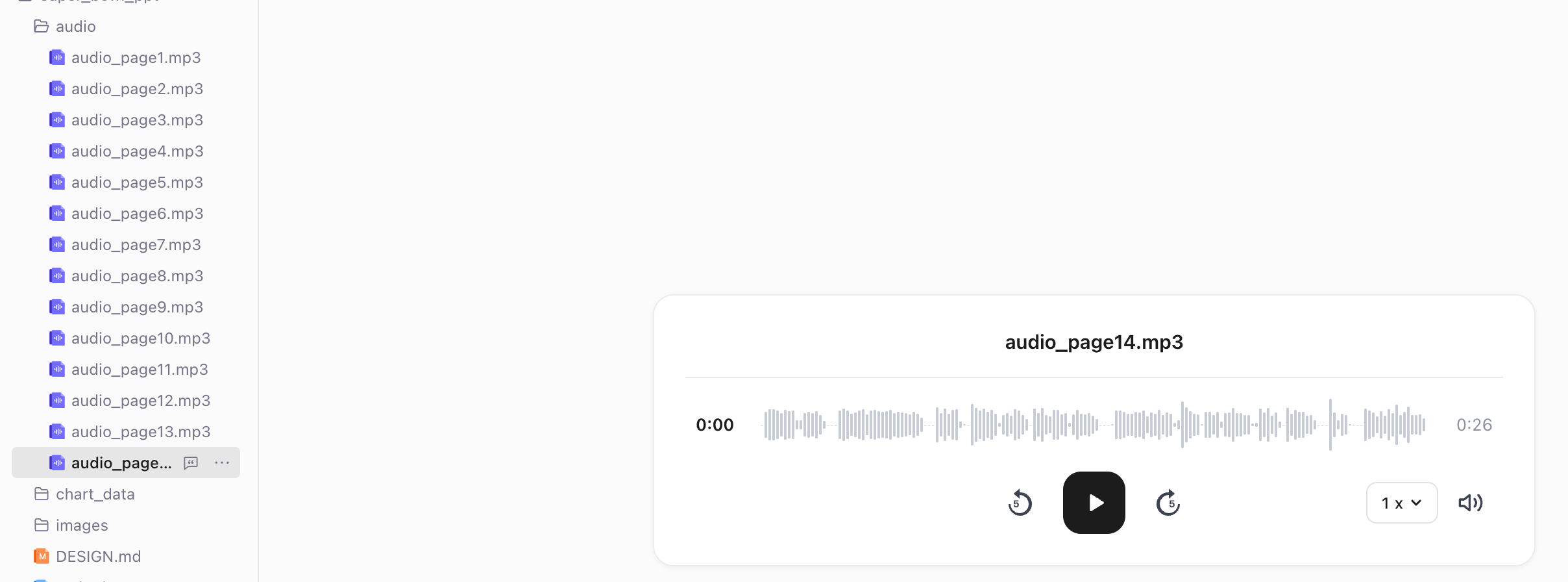
The deck has found its voice. Your vocal cords can take a small holiday.
If you have a particular audience or delivery style in mind, include that in the request. For example:
Turn this presentation into a narrated video in English for new team members. Use a clear, conversational tone. Explain each slide rather than reading every word aloud, and don't add facts that aren't in the deck.
That gives Cheso more direction while leaving it room to do the production work.
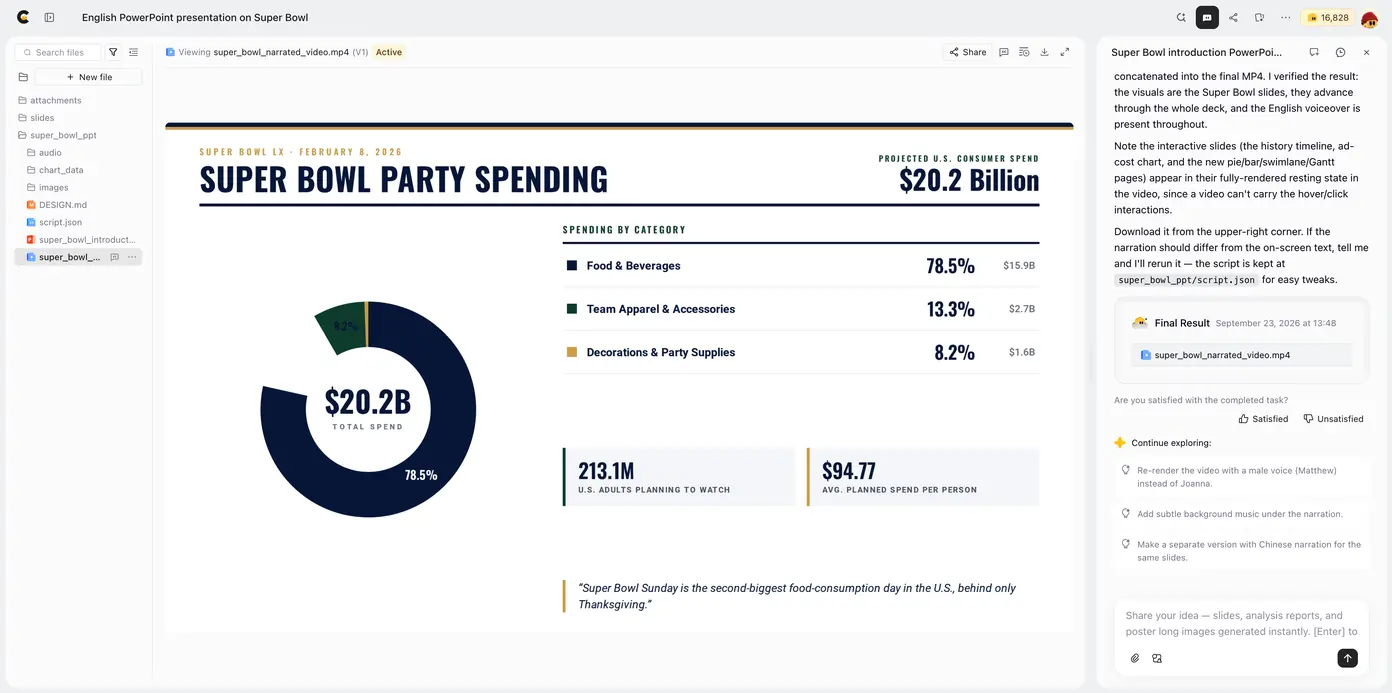
Same presentation, now ready for “send me something I can watch later.”
A narrated version is useful after a live session, for an asynchronous project update, or as a walkthrough people can revisit at their own pace. You've already built the story. It makes sense to let it do another shift.
Before sharing, watch the result once for pronunciation, pacing, and the match between narration and slide changes. A video is a linear viewing experience, so interactive charts become presented views, not clickable controls. If exploring the material is part of the experience, send the presentation alongside the video.
6. Running out of credits should not trigger a financial plot twist
You've nearly finished. You need a little more capacity.
This is not the moment you want a pricing page to suggest that you become a different category of customer.
Cheso offers three payment styles, so you can choose between a one-month purchase and a recurring subscription:
- One month, no auto-renewal: $21.90 for the entry credit tier, with 21,900 credits in total.
- Monthly subscription: the current introductory offer is $1.90 for the first month, then $10.90 per month, with 21,900 credits each month. It renews automatically.
- Annual subscription: the current offer is $118.80 per year, equivalent to $9.90 per month, with 262,800 credits per year. It renews yearly.
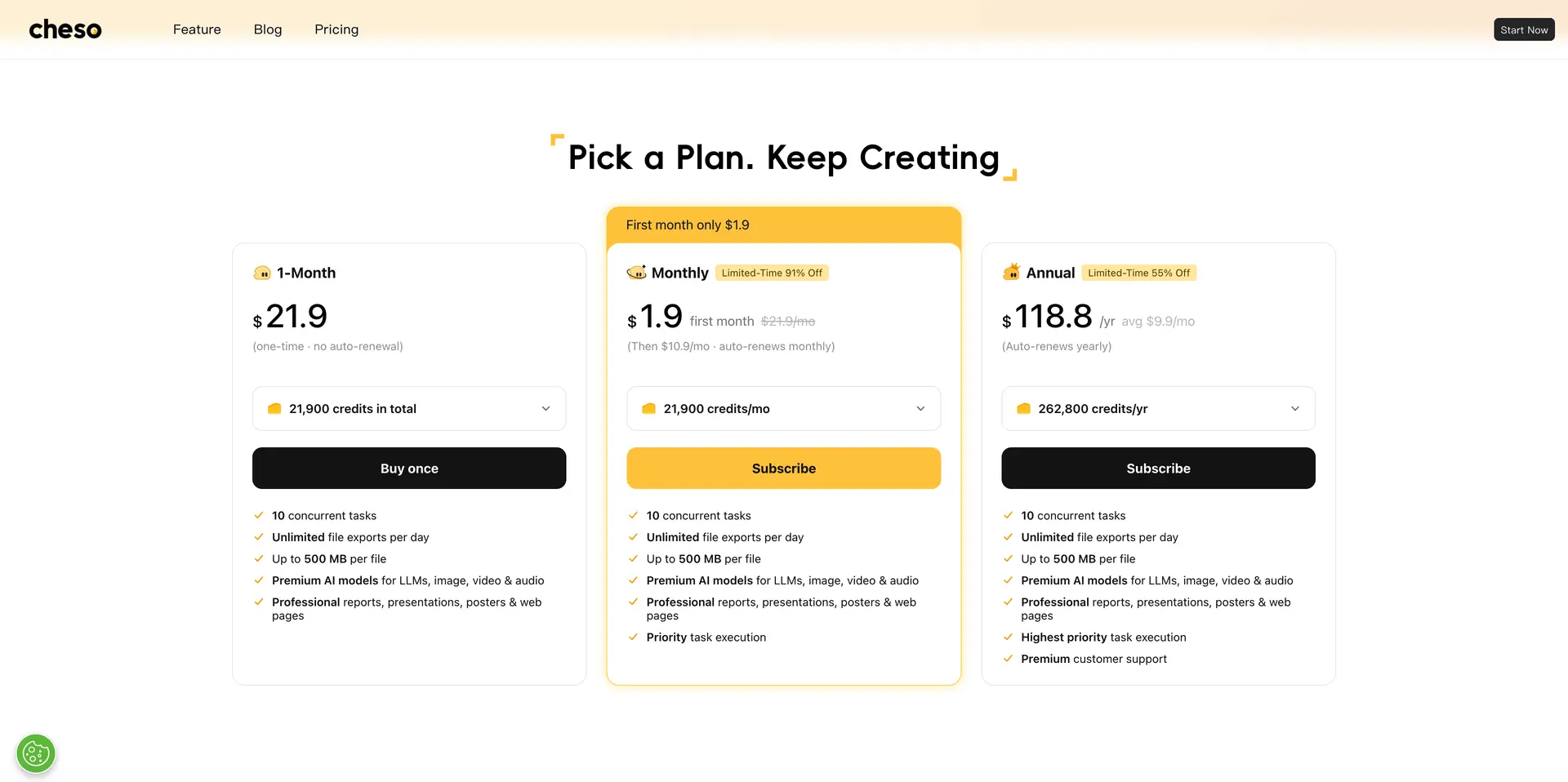
A one-time month, a recurring month, or a year. Pick the commitment that fits the work.
Need more credits during a busy stretch? Cheso also offers add-ons: $10 for 10,000 credits. In Usage & billing, choose Buy Add-on to add capacity without switching to a much larger subscription just to finish a project.
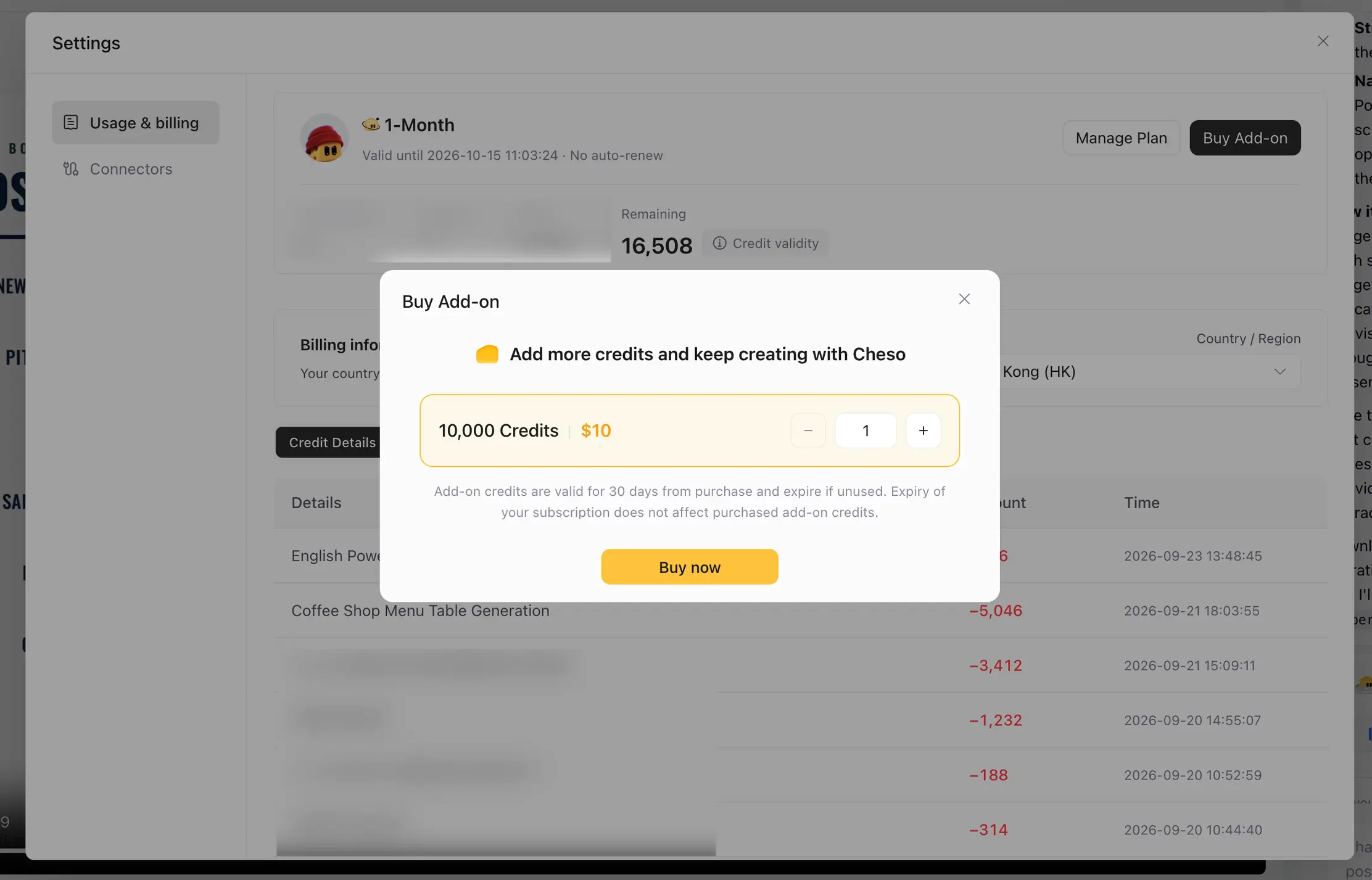
More room to finish the work. Less subscription gymnastics.
One useful detail from the purchase dialog: add-on credits are valid for 30 days from purchase and expire if unused. Your subscription expiring does not itself cancel purchased add-on credits; their own validity period still applies.
How many presentations a pack covers depends on the work: deck length, generation choices, and rounds of revision all matter. A quick ten-slide update and an elaborate narrated presentation are not the same job wearing different titles.
More AI help. Still your presentation.
That's why we built Cheso: to make the whole presentation workflow feel better, including the slightly unglamorous parts that happen after the first impressive draft.
Change the font. Move the image. Give the data the visual it deserves. Export for the place the presentation needs to go. Turn it into something people can watch. Add capacity when the work calls for it.
AI can take on the heavy lifting. You should still get to decide whether the headline needs a different typeface.
Our team will keep being suspiciously enthusiastic about these details. Occupational hazard, remember?
Try Cheso with your next presentation. Bring an idea or a deck you've been meaning to improve, and keep going until it feels like yours.
And please, for our collective peace of mind: remember to Save.