
Cheso Can Now Turn Notes into Videos!
Turn study notes and class handouts into slides, then narrated educational videos you can replay and share—all in one Cheso conversation.
Hi, friends. Documents really are a wonderful invention.
PowerPoint slides, Word files, PDFs, spreadsheets—the world runs on these little arrangements of text and pictures. Science, business, that suspiciously long handout from your teacher. We owe documents a lot.
Hand me a math paper, though, and my appreciation becomes a little more theoretical. I am not exactly speed-running a mountain of research papers over breakfast.
Sometimes you read the same paragraph three times and still have no idea what just happened. If you have ADHD and find long reading sessions hard to stick with, you may know that feeling all too well. “Just concentrate” is not much of a study plan.
So, what if the material could explain itself? A voice to guide you, visuals to follow, and the complicated bits broken into language that actually makes sense.
That is where Cheso’s new document-to-video workflow comes in. You can turn study notes into slides, then turn those slides into a narrated educational video, all in the same conversation.
Let’s try it with a middle-school biology handout about cells. Tiny organelles, big main-character energy.
1. Start with the handout. Yes, we’re making slides first.
Upload the material you want to review. A class handout is perfect, but a PDF, a Word document, or images of the relevant textbook pages can also give Cheso something to work with. You do not need to rewrite the whole lesson into a prompt. That would rather defeat the point.
For this walkthrough, we are starting with a handout on cell organelles: what they are, what they do, and how the pieces fit together.
The first request is to turn that handout into a PowerPoint presentation. Here is the prompt:
This is the handout my teacher shared with us in class. I’d like to go through the material again after class to review and reinforce what I’ve learned. Could you first turn this handout into a PowerPoint presentation? Please make sure all the key points from the handout are covered in the slides.
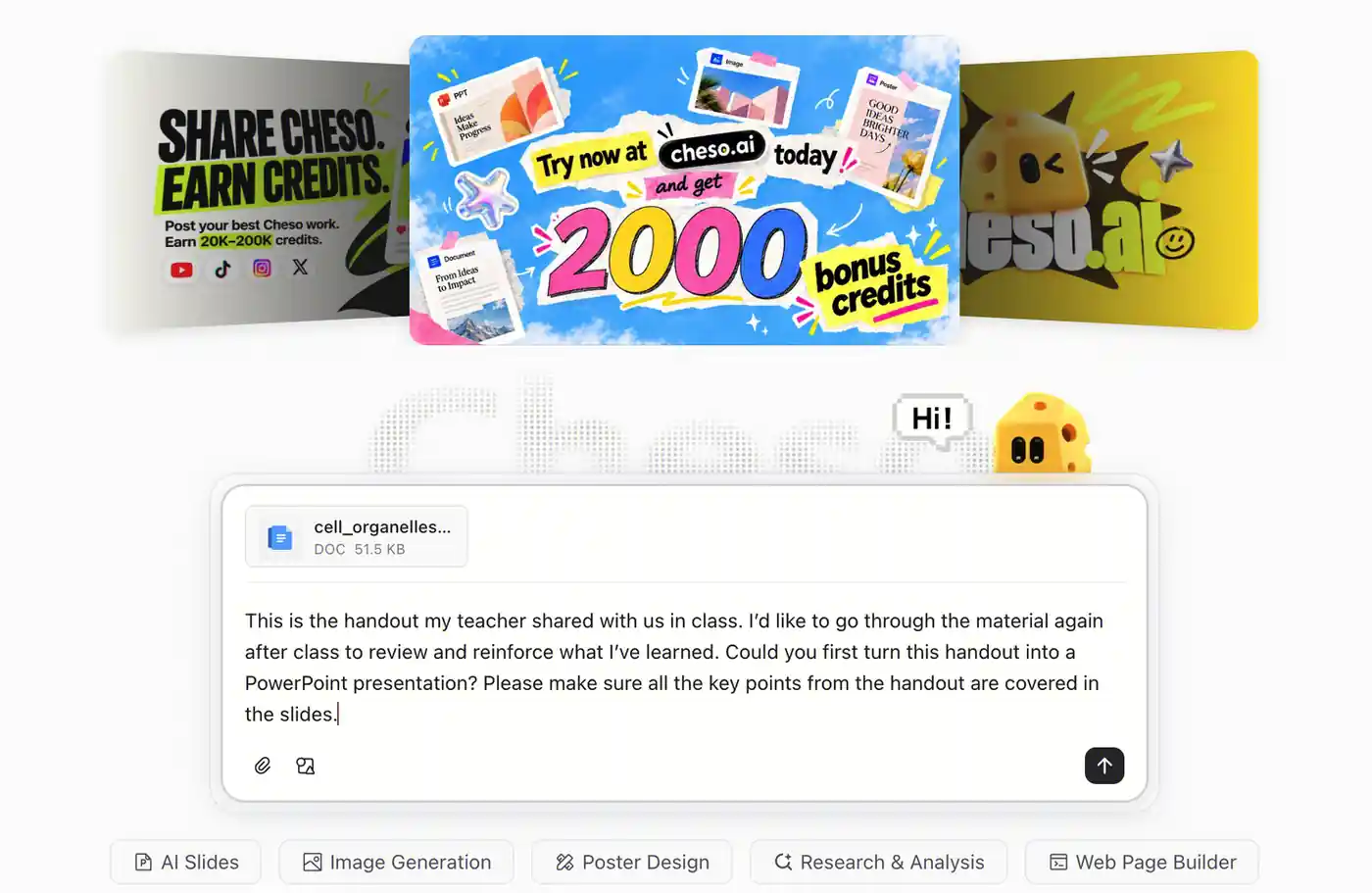
Start with the teacher’s material and tell Cheso what you want to use it for: reviewing the lesson after class.
Why slides first? Because a handout and an explanation have different jobs. A handout can put a lot of information on one page. An explanation needs an order: introduce an idea, show how it works, then move to the next one.
The slides give the video that structure. Think of them as the lesson’s visual outline—one manageable piece at a time, instead of every cell part introducing itself at once.
Cheso will ask about the presentation’s visual style while it prepares the deck. Choose a direction that suits the subject and the audience.
For middle-school biology, a friendly illustrated style makes a lot of sense. Clear labels, a little color, and diagrams with room to breathe. We are studying cells, not presenting quarterly earnings to the board.
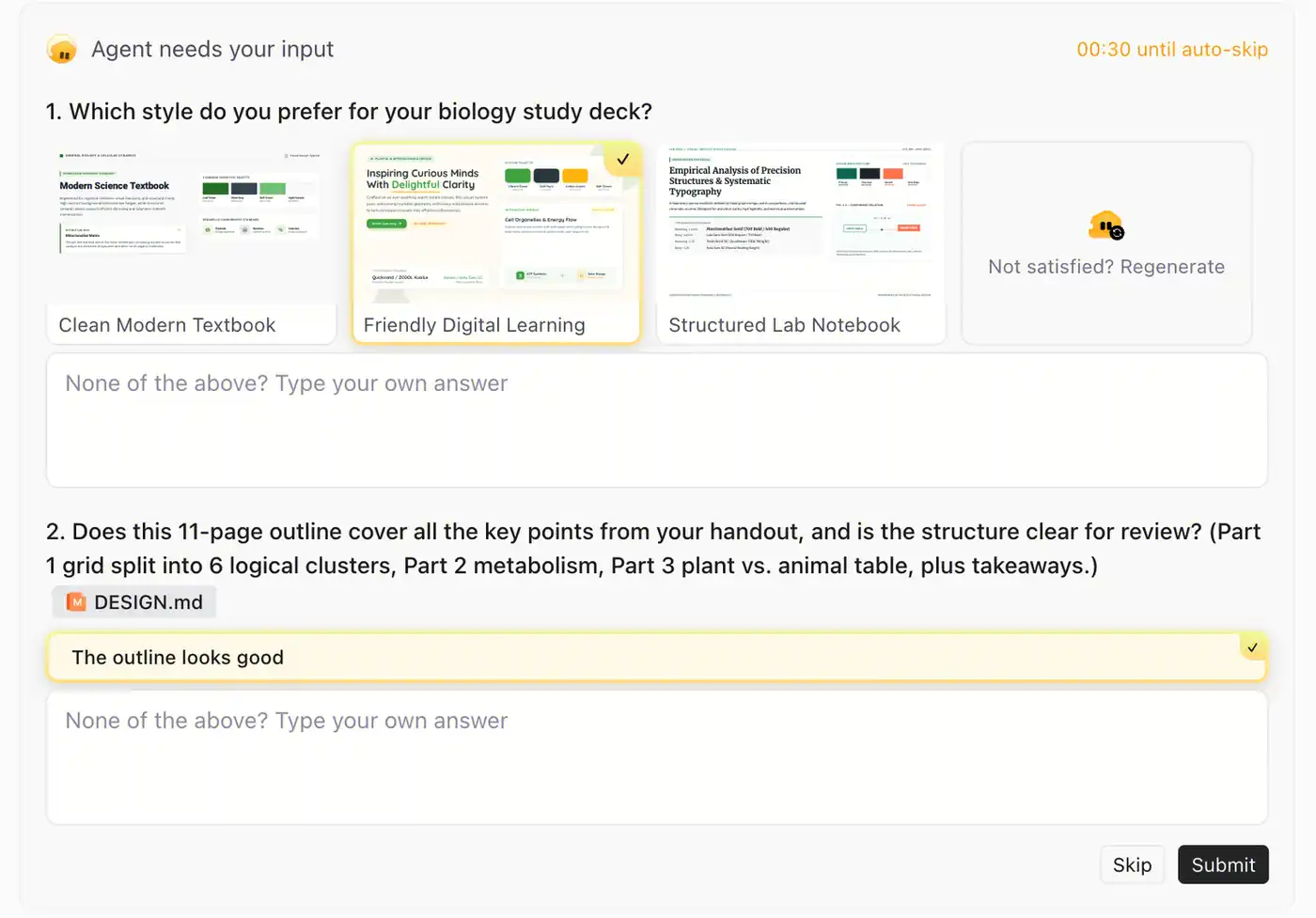
Choose the visual direction for the lesson before Cheso builds the slides.
And here is the deck: a much more inviting way to revisit the material.
Wait. Is that a tiny chloroplast at the bottom of the first slide? Adorable. Photosynthesis has apparently hired a brand designer.
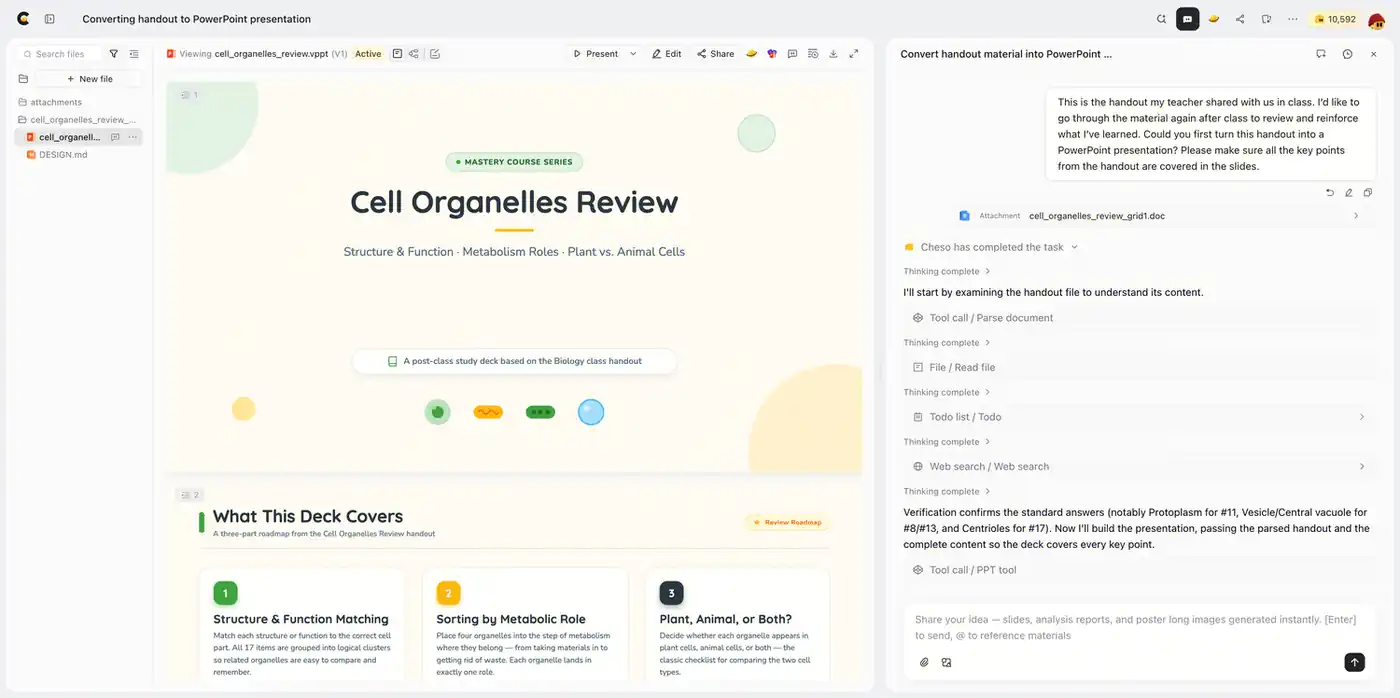
The handout becomes a visual study deck, with the material organized into a sequence of slides.
Lovely. But we did not come here just to admire a cute PowerPoint. The video is the main event.
2. Turn the PowerPoint into an educational video
Stay in the same conversation and ask Cheso to turn the presentation into a video.
You can keep it as simple as “Turn this PPT into a video.” A little more context, though, gives Cheso a much clearer brief. Who is watching? What do they already know? Are they revisiting a lesson or meeting the subject for the first time?
Here is the prompt used in this walkthrough:
I'm an eighth-grade student, and I'd like you to turn this PowerPoint presentation into an educational video to help me review and relearn the material. Please explain all the key concepts clearly and simply, using language that's easy for an eighth grader to understand. Make the video engaging and easy to follow, so I can master the material and get an A on my final exam!
The ambition is there. We respect the ambition.
More importantly, the prompt gives Cheso three useful pieces of direction: the audience, the learning goal, and the level of explanation. “Make a video” names the format. “Help an eighth grader understand this lesson” tells it what the video needs to do.
You can also add a few preferences without turning the request into a film-school assignment:
- Length: Ask for a short review or a more detailed walkthrough.
- Pacing: Ask for a slower explanation when a process or an unfamiliar term appears.
- Tone: A friendly tutor, plain language, and a bit of personality.
- Emphasis: Name the concepts you want the explanation to spend more time on.
For this biology lesson, an extra sentence could be:
Explain what each organelle does before introducing the next one. Use simple comparisons where they help, keep the scientific terms from the handout, and finish with a short recap of the main differences between plant and animal cells. Aim for a friendly explanation, not a voice reading bullet points at me.
That last distinction matters. A slide might list a name and a function. The narration has room to explain the connection—to turn “here is a term” into “here is what it means.”
Cheso first works through the slides and creates a narration script. It then uses text-to-speech to turn that script into spoken audio.
So the deck supplies the visual sequence, while the script supplies the explanation. The voice gives it a pace and a little life. Your handout has officially found something to say.
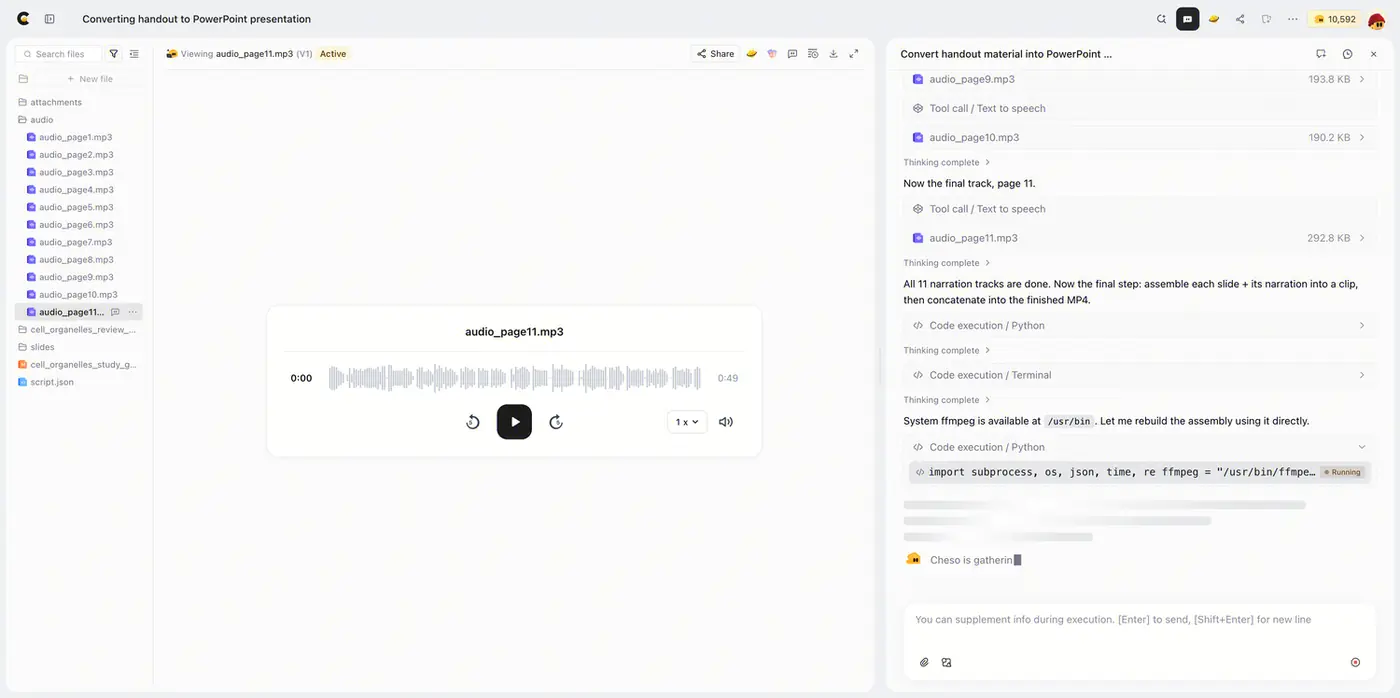
Cheso builds the spoken explanation from the slides and generates the narration audio.
Next, Cheso uses its video-editing tools to bring the visuals and narration together into the finished video. You do not have to move into a separate editor and line up every slide with its audio yourself.
And here we are:
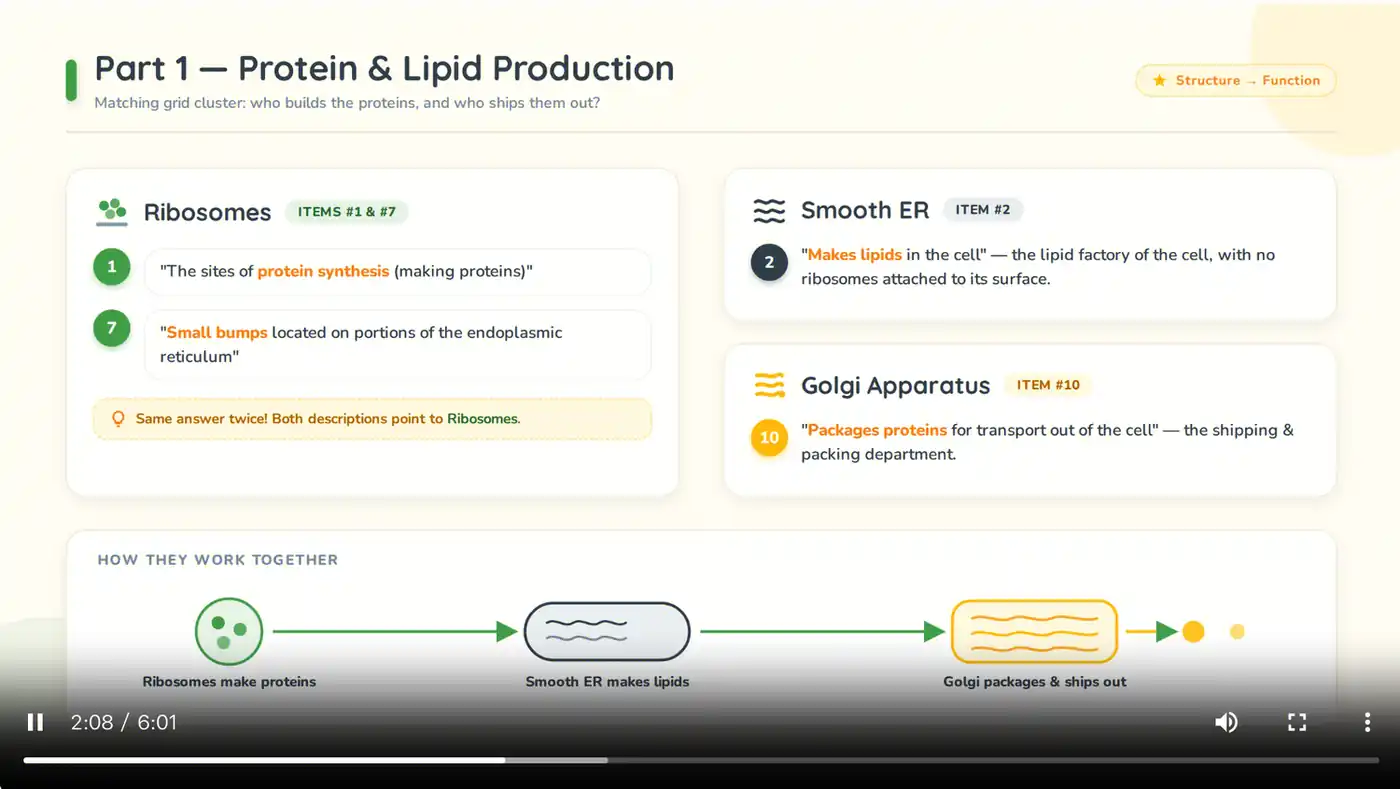
The lesson is now a playable video, combining the visual material with a spoken explanation.
Wanna watch the video for yourself? Watch the cell-organelles lesson.
This example runs for about six minutes. That is the length of the finished lesson, with the class material turned into a compact review you can watch again.
Need another pass at an explanation? Pause, go back, and play it again. The video will not sigh dramatically because you asked about the Golgi apparatus for the fourth time.
You now have two ways to revisit the same material: the slides when you want to scan the key points, and the video when you want someone to walk you through them.
3. Share the lesson. Let the chloroplast meet the group chat.
The finished video does not have to stay in your project. Use Share to create a viewing link and send it to the people you want to watch it.
They can open the link and watch online, instead of piecing together the original handout, slides, and audio files. Same lesson, one place to press play.
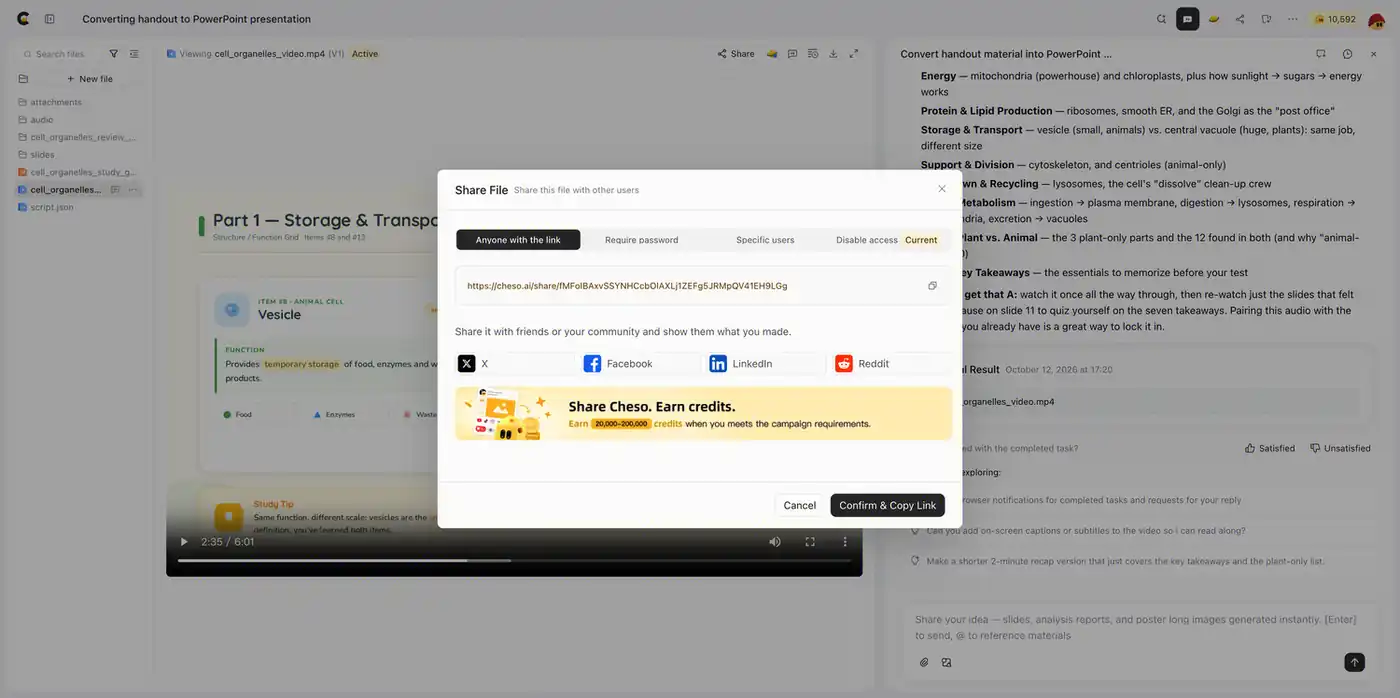
Share the finished video through a link so others can watch it online.
That is the whole journey: class material becomes a slide deck, the deck becomes a narrated video, and the video becomes something you can revisit or share.
No camera. No microphone. No starring role as the voice of the mitochondrion. Unless you were really looking forward to that.
Your notes have had enough quiet time
If there is a handout you keep meaning to review, start there. Upload it, ask Cheso to organize it into slides, then tell it who the video is for and how you want the lesson explained.
Turn your study notes into an educational video with Cheso.
Bring the material. Give it a voice. And please tell the tiny chloroplast I said hi.