
How to Edit AI-Generated Presentations in Cheso (Without Starting Over)
Learn three ways to edit an AI-generated presentation in Cheso — precise manual editing for exact changes, selected-area AI Edit for local visual revisions, and Quote and Edit for context-aware updates — without regenerating the whole deck.
How to Edit AI-Generated Presentations in Cheso (Without Starting Over)
Your AI-generated presentation is ready. The structure looks good. The slides look good. You are almost ready to celebrate🎉.
Then you spot it: a font you would never choose, a number that needs more punch, a chart that could use a little drama.
Ah. The last 30% has entered the chat.
Cheso creates presentations, posters, and webpages with AI. But generating something is only the beginning. The useful part comes next: making it yours.
You can fine-tune text and formatting by hand, ask AI to change a selected area, or bring that area into your ongoing conversation for a context-aware edit. No need to restart the whole deck because one headline is being difficult.
Here is how to edit an AI-generated presentation in Cheso, with three ways to tackle three very different kinds of ‘almost right.’
Manual Editing: You Know What You Want. Just Change It.
An AI first draft can feel like a 70-out-of-100 answer: a promising start, with a stubborn handful of details between you and the finish line.
Sometimes those details do not need another prompt. If you know the exact word, font, or alignment you want, explaining it to AI can be more work than changing it yourself. ‘A little to the right. No, the other right.’ We have things to do.
That is where Cheso's manual editing comes in. You can select content directly and adjust familiar details such as the font, weight, alignment, and position. If you have worked in PowerPoint, the hands-on approach will feel familiar.
Start with your generated presentation open in Cheso. Click Edit in the upper-right corner to enter editing mode.
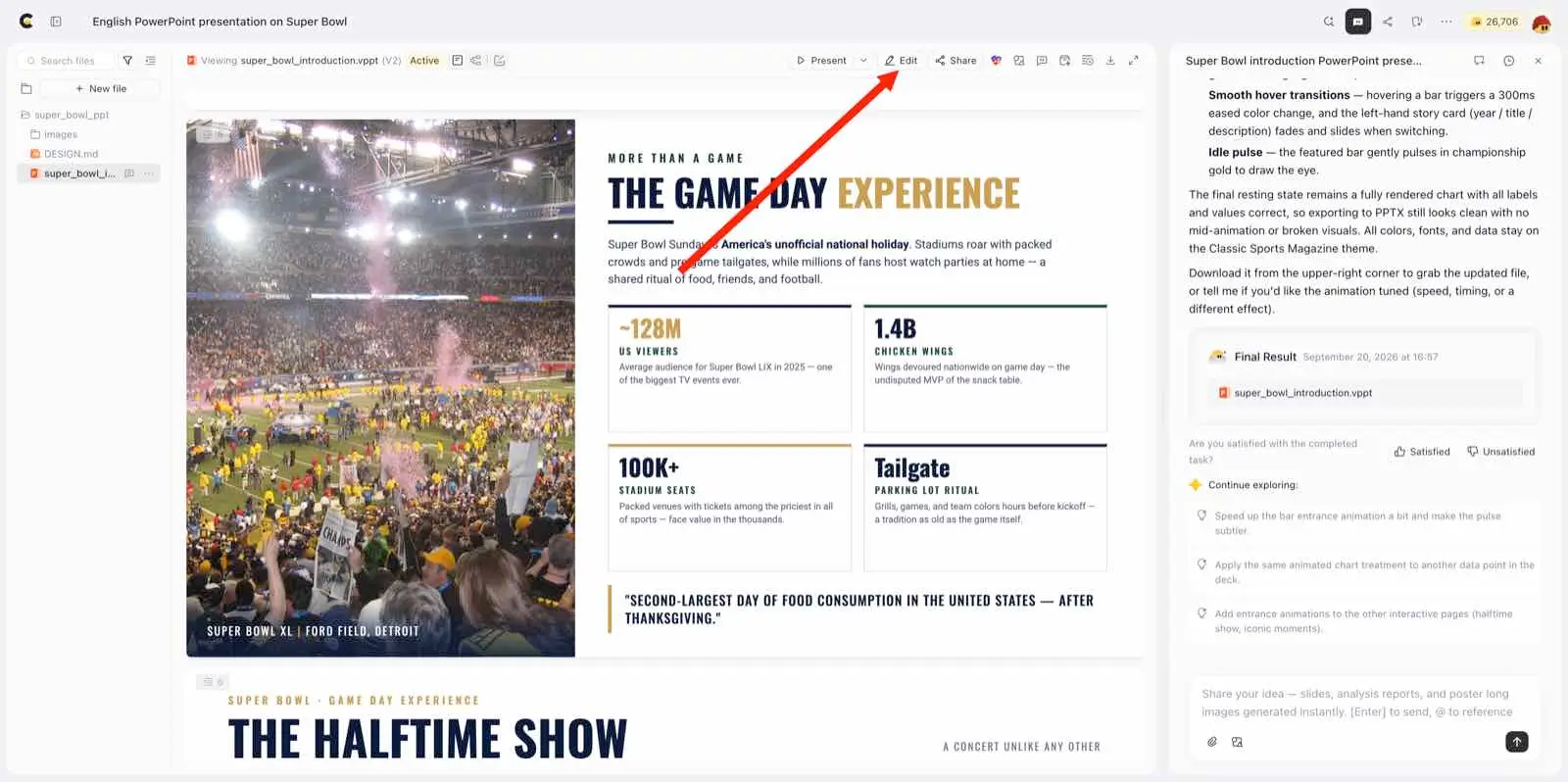
Now select the text or area you want to work on. Its editing controls put the next move in your hands.
All right. Let us make a little magic.
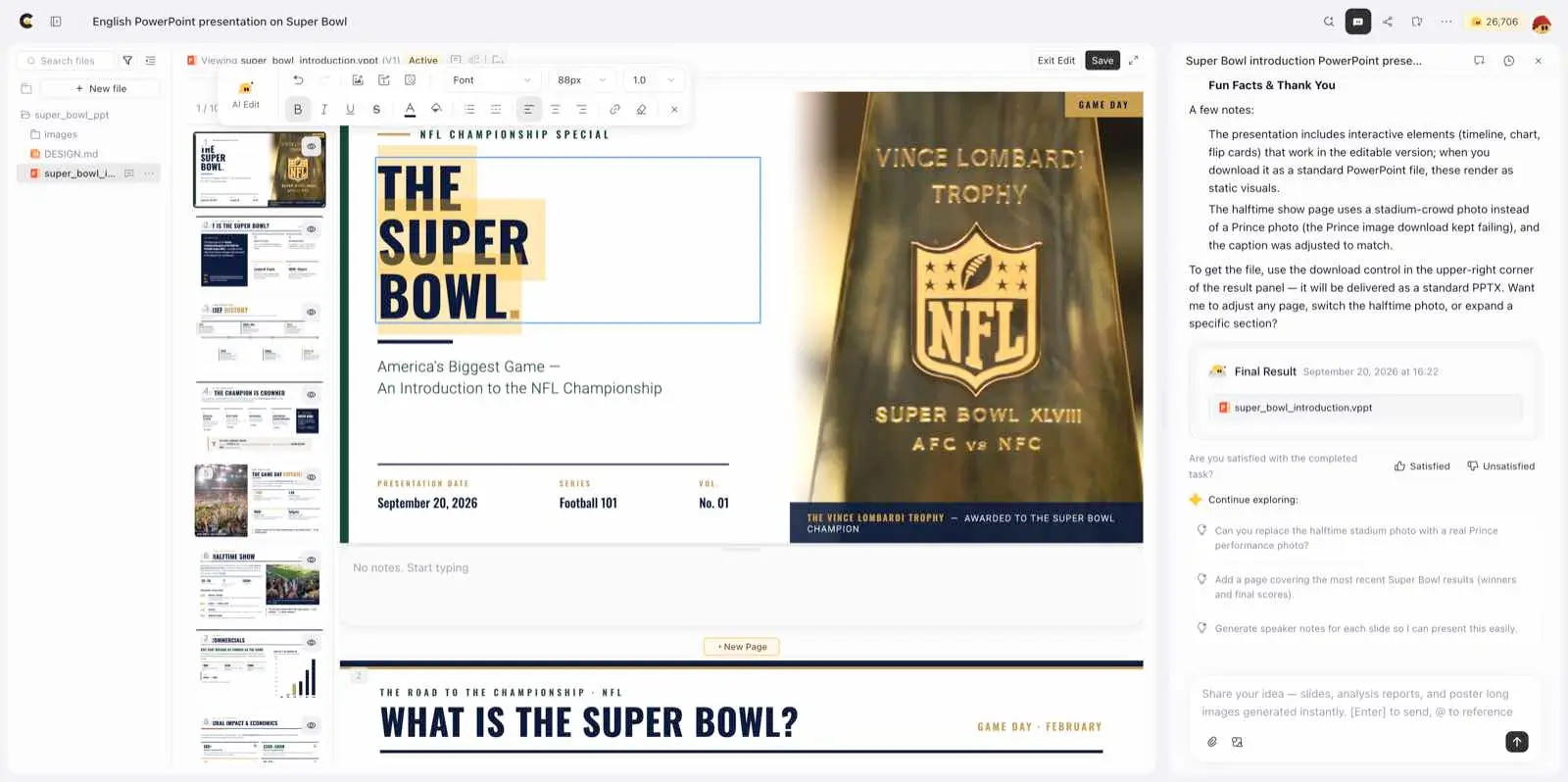
First up: a cooler font. Because ‘technically readable’ is not always the vibe.
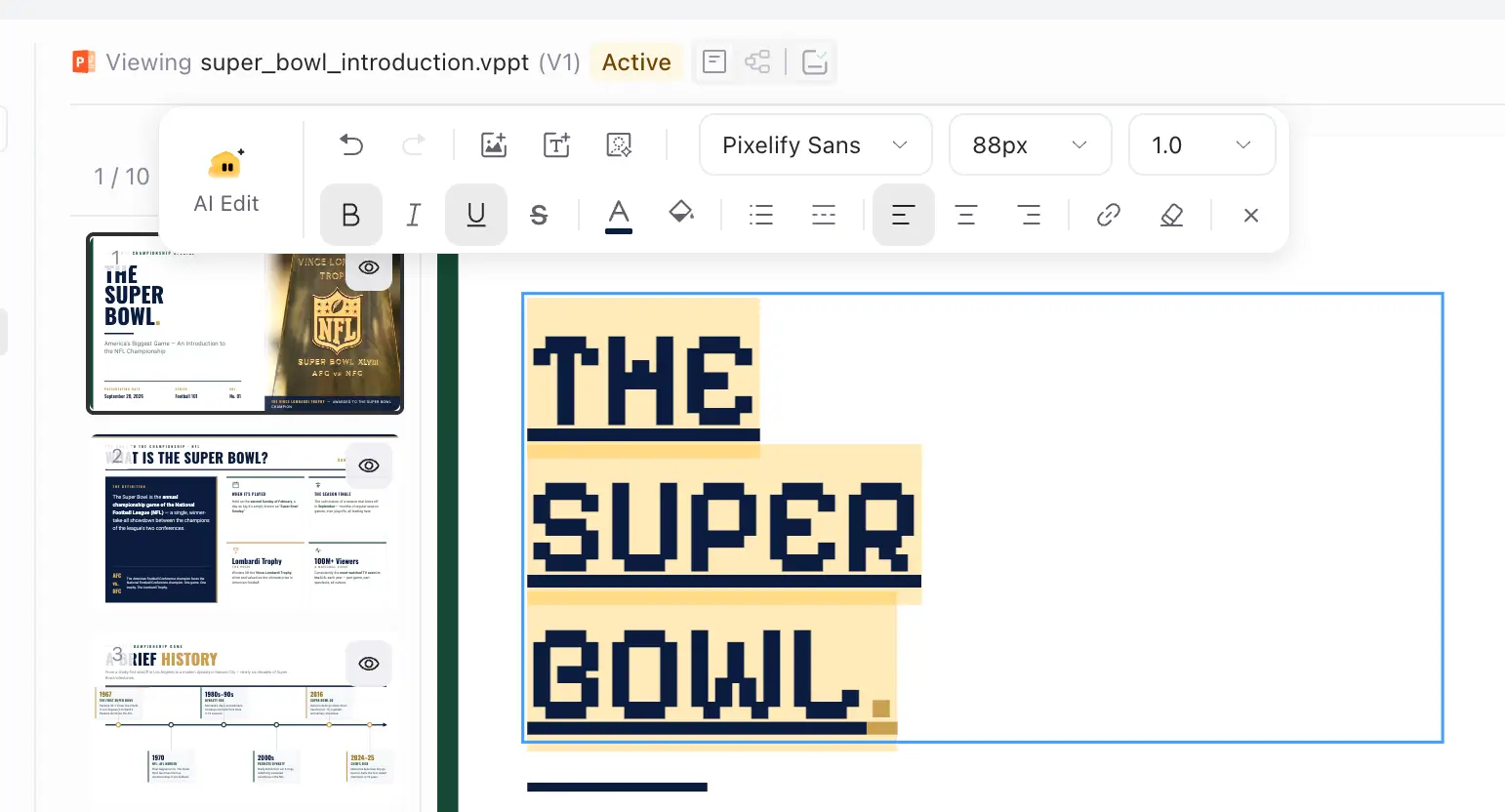
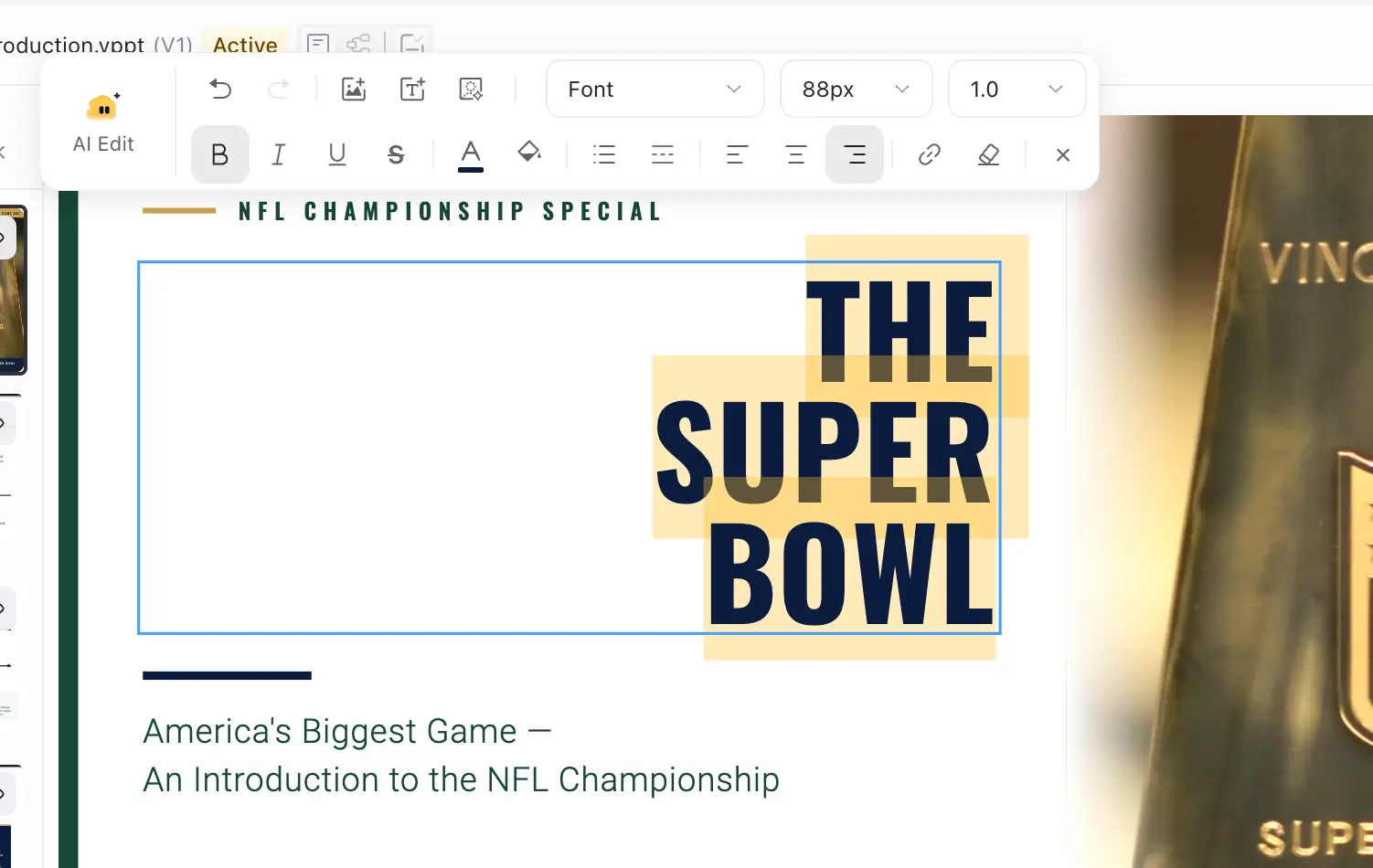
Select your text, pick a font, and add an underline if that phrase deserves a little extra attention. Keep the emphasis deliberate; if everything is shouting, nothing gets heard.
Or, hey. What if we moved that text to the right?
Select it and try right alignment. A small change can shift the balance of the whole slide, especially when text sits beside a big image. Take a step back and check the composition before declaring yourself a design genius.
Wait. You want that text to open a website? Now we are talking.
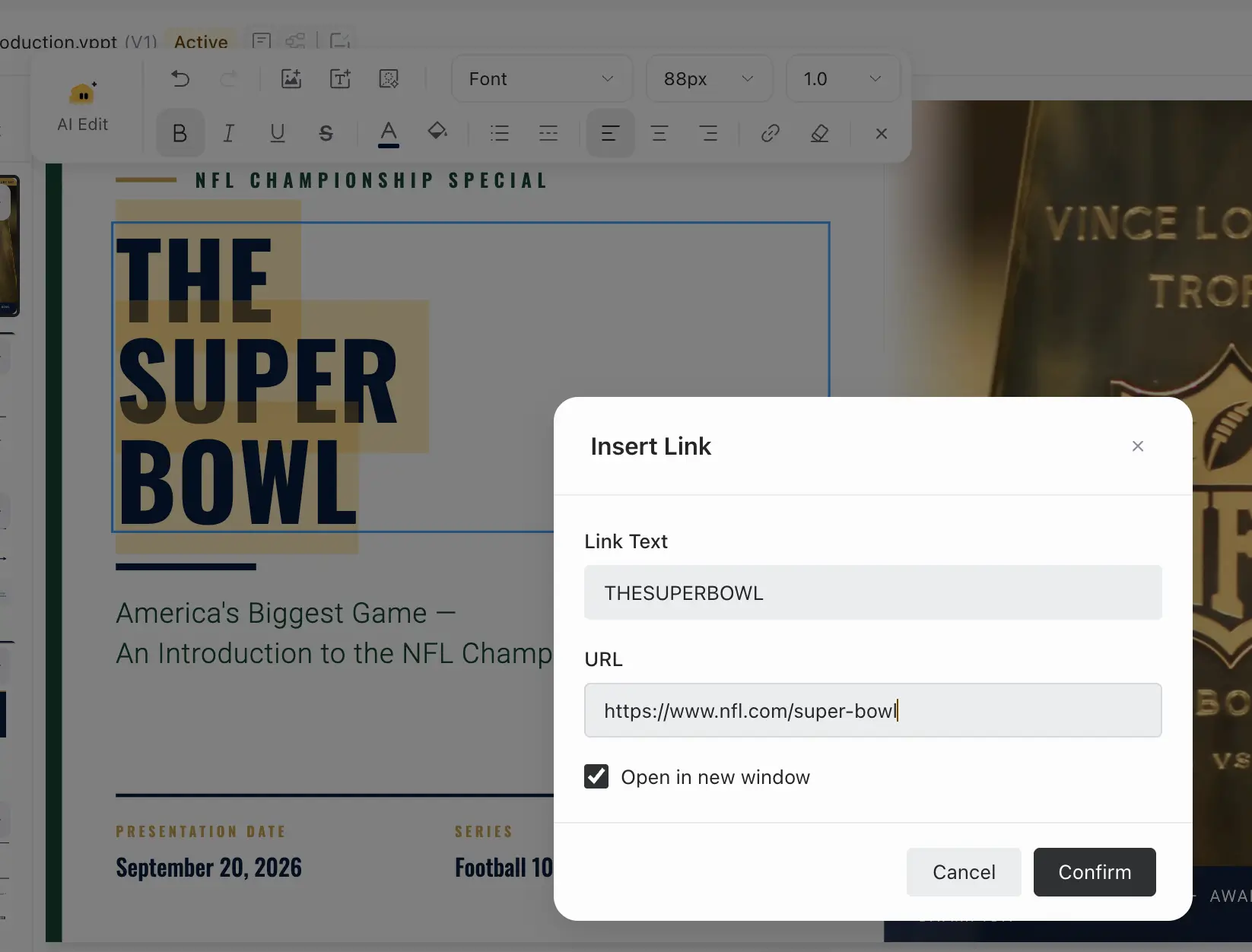
Select the words, add a hyperlink, and enter your destination URL. A source, a product demo, an extra bit of context: suddenly the slide has somewhere useful to take people. Check the link in the format you plan to present or share. Nobody wants the grand reveal to be a broken URL.
The point is not to prompt your way through every tiny decision. Let AI give you a starting point, then make the precise changes yourself. Your deck. Your slightly unreasonable font opinions.
And when the change stops being tiny? That is our cue.
AI Edit: A Little AI Help, Right Where You Need It
Some edits are easier to describe than to build by hand. A different treatment for a chart. A layout adjustment. A visual effect you can picture, but would rather not assemble one control at a time.
You could ask in the main chat. But for a self-contained change, a long conversation can add noise, and a vague request like ‘change that bit’ leaves AI with an awkward guessing game. Which bit? The headline? The chart? The entire personality of the slide?
Cheso’s selected-area AI Edit gives your request a clear target. In Edit mode, select the area you want to change, open AI Edit, and describe the result. It is a focused way to ask for a local revision without turning every adjustment into a new conversation about the whole deck.
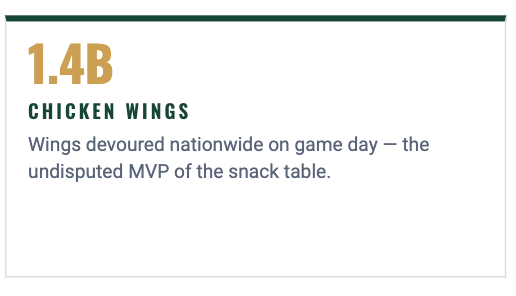
Take this Super Bowl slide. Big-game energy? Present. A number that could use a little more shine? Also present.
Let’s make the 1.4B text gold. What exact shade of gold? Fair question. You do not have to start by hunting through a color picker; describe the look you want.Example prompt: I want the text here to be in gold – a bright, rich golden color!
Don’t overthink it—Cheso’s a clever little agent. It’ll catch your drift.
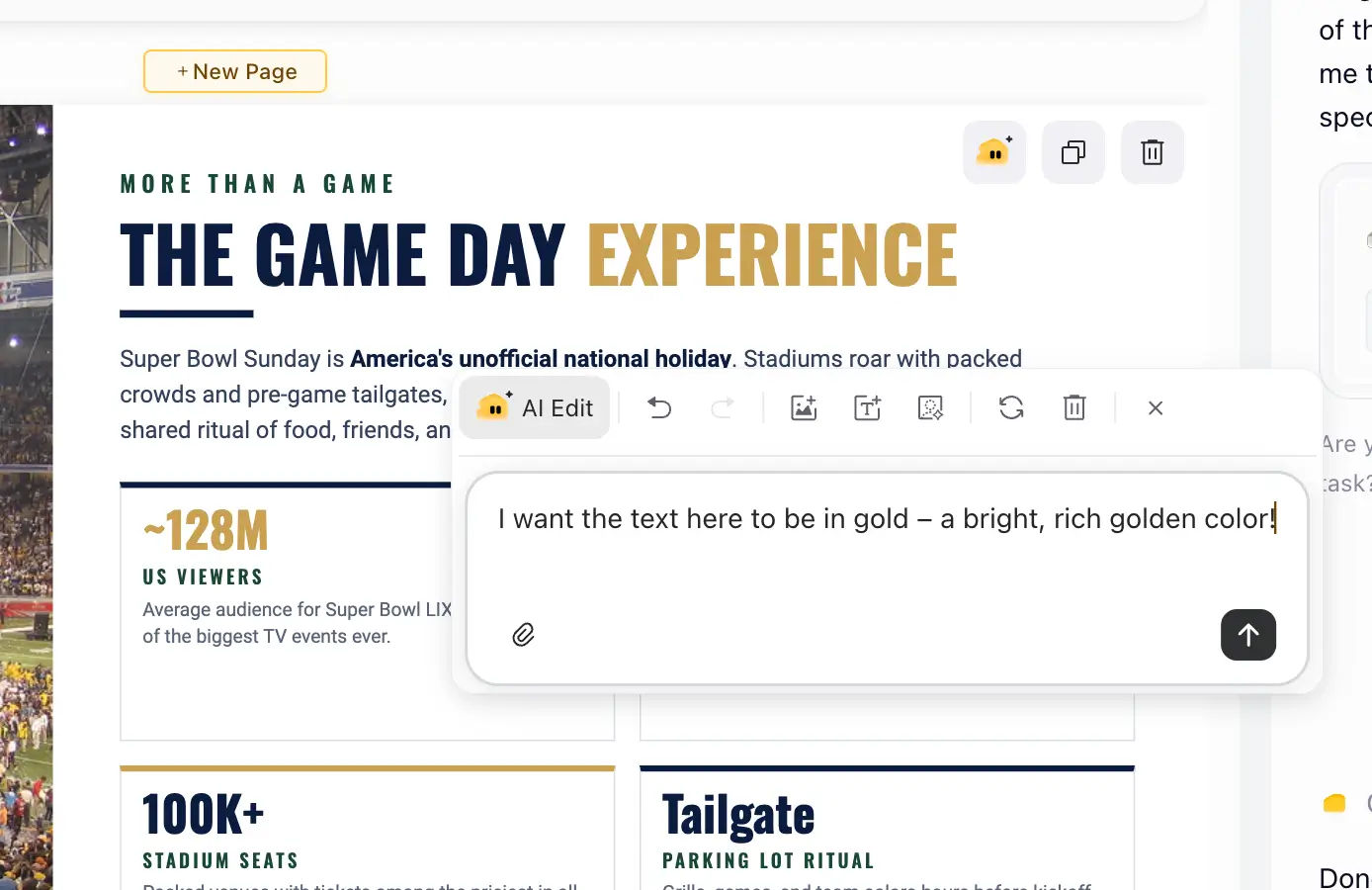
Send the request and let Cheso work on the selected area. Cue the tiny drumroll.
When the result appears, check it against your original intention. Is the color right? Can you still read the number against the background? Are the surrounding elements still where you want them? A focused request helps define the job; your eyes still get the final vote.
Aha. There it is: 1.4B, now in the golden yellow we were after.
Is anyone else getting fried-chicken energy from this color? No? Just me? Fine. We will call it a premium gold and move on.
If the first version is not quite right, refine one thing at a time: warmer, less saturated, or higher contrast. Asking for a deeper gold, with everything else unchanged, gives AI more direction than ‘Hmm, not that.’
Quote and Edit: Same Idea, Next Slide
Sometimes context is exactly what you need.
You have already settled on a visual style or worked through an animation in the chat. Now you want the same treatment on another slide. Surely you should be able to say, ‘Oi, do that thing again. Over here.’
This is where Quote and Edit comes in. It brings the selected content into your ongoing conversation, so the request has both a specific target and the earlier discussion to draw on.
Think of the difference this way: AI Edit is for a focused, self-contained request. Quote and Edit is for a focused request that benefits from what you and Cheso have already worked out together.
Quick heads-up: click the button in the top-right corner to exit Edit mode first. Then just highlight the text you want to tweak, and voilà—Quote and Edit pops up.
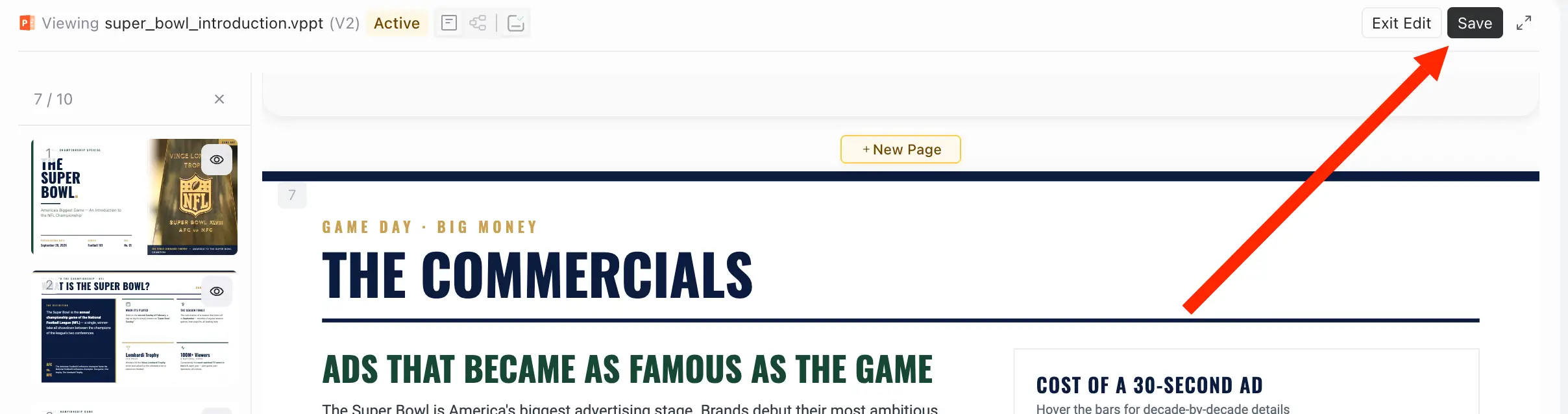
Then highlight the relevant text, choose Quote and Edit, and add your request in the ongoing chat. Check that the quoted content is the part you actually meant. A beautifully written prompt aimed at the wrong thing is still aimed at the wrong thing.
Let’s try it with a chart. If the previous chart already has the style you want, you could ask:
Apply the same style as the previous chart to this one. Keep the numbers and labels unchanged.
Be a little more specific than ‘like before’ if you have tried several versions. Name the approved chart, the color treatment, or the animation you want to reuse. Context is helpful. Mind reading is still a big ask.
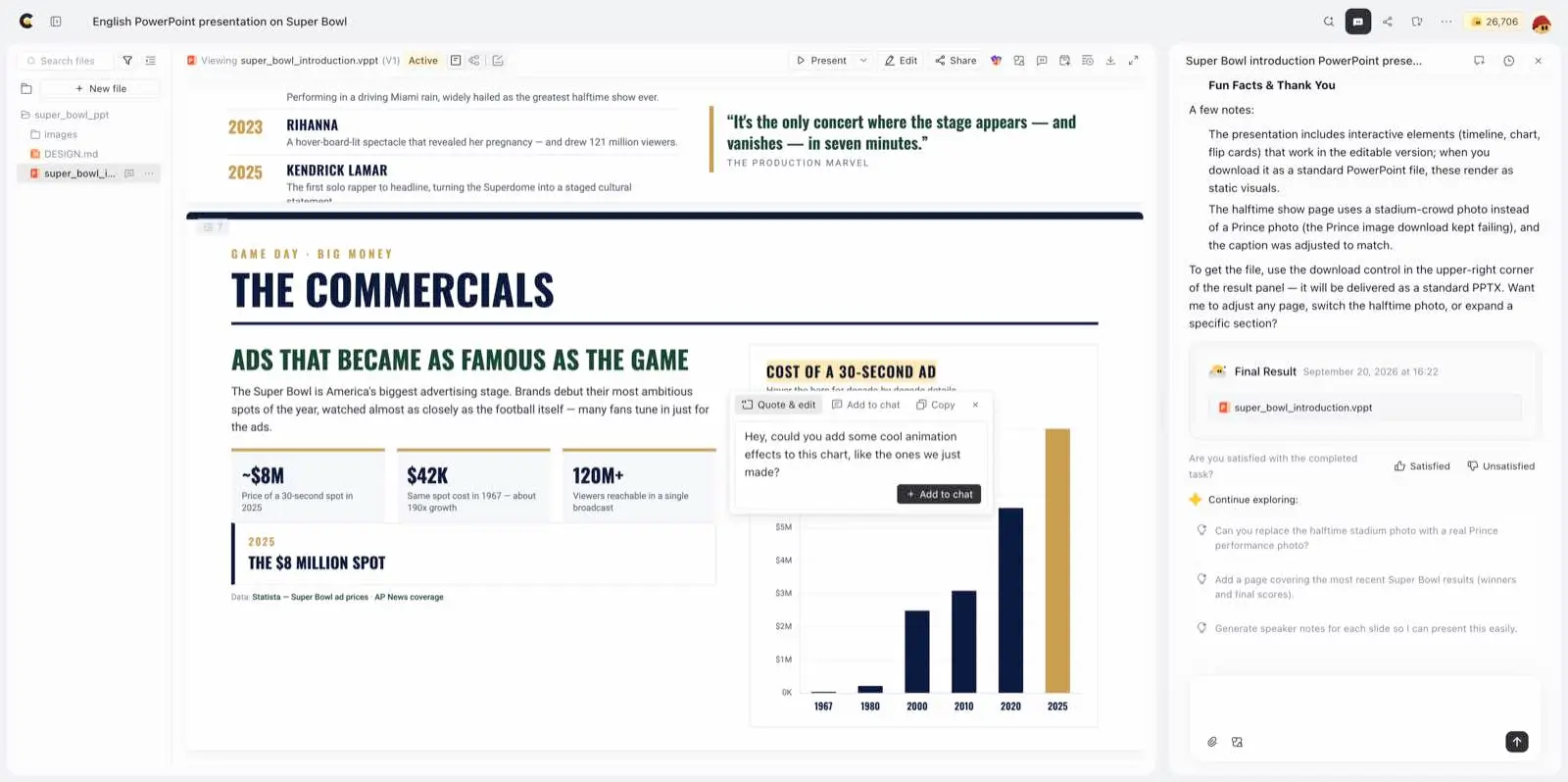
For the animated-bar example here, the request could be:
Animate these bars so they grow upward one by one. Use the same animation style we discussed earlier, and preserve the data and labels.
Let Cheso make the change, then preview the result. Check the sequence and pacing, not just the final frame. The animation should help people follow the chart, not make them wait for the chart to finish showing off.
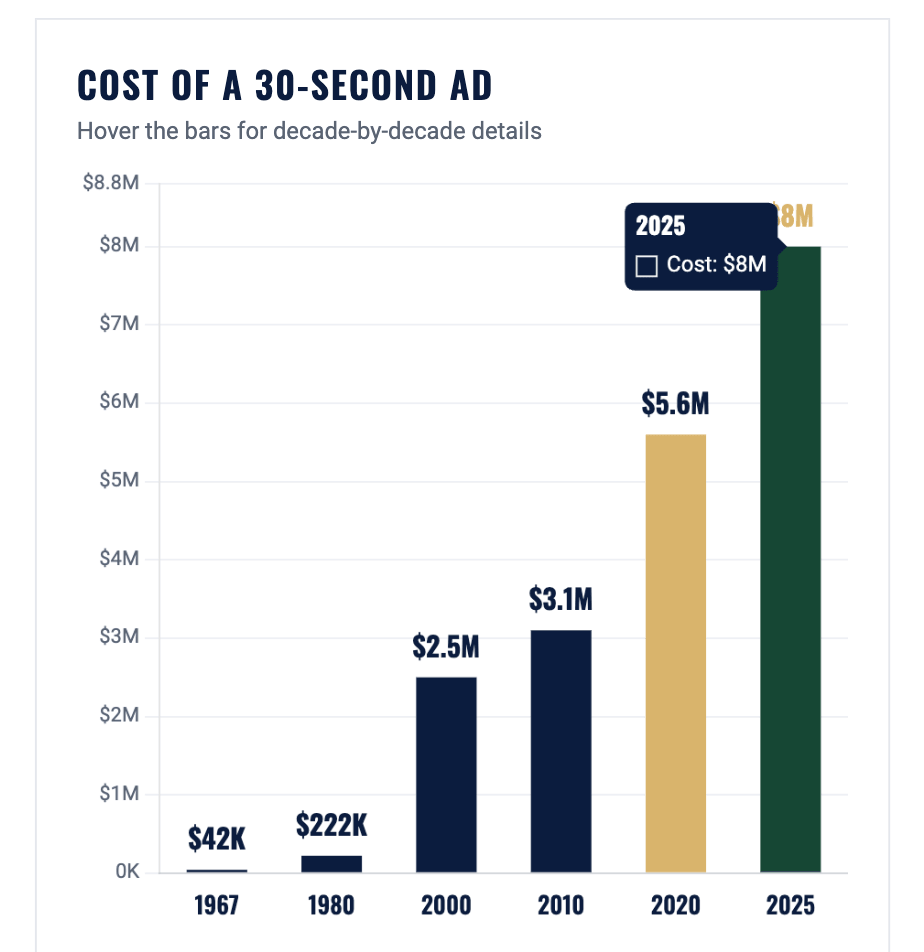
And there they go: the bars grow upward, one after another, like a very well-organized row of tiny saplings.
A still screenshot cannot show the movement, which is deeply unhelpful of still screenshots. Try it in Cheso to see the effect in motion. Then decide whether your slide needs that extra bit of life or whether the numbers are better off making their entrance quietly.
Choose Your Next Move
Know the exact change? Use manual editing for precise text and formatting adjustments.
Know the result you want, but do not want to build it by hand? Select the area and use AI Edit.
Need Cheso to reuse an earlier decision or follow the conversation? Use Quote and Edit.
You can move between the three as the job changes. Fix a word yourself, ask AI for a visual adjustment, then carry an approved style into the next slide. There is no prize for doing everything in one mode.
One Last Look Before You Share
Check the facts, numbers, and labels. Look for awkward line breaks, inconsistent spacing, and text that disappears into the background. Test your links and preview any animation. Judge the deck in the format your audience will actually see.
If you export an editable PPTX for PowerPoint, open the exported file and review it too. Fonts and animation may not carry over exactly as they appear in Cheso.
Ready to make that almost-right deck feel like yours? Open Cheso, pick one stubborn slide, and try the editing mode that fits. Start small. A font. A color. A suspiciously well-behaved bar chart.
Try it at https://cheso.ai/AnliLTycpz4Y_IWzwdiENOSwOPs33PUEF0Gt7OIC20Li
The last 30% is yours to shape. The fried chicken is optional.